> ## Documentation Index
> Fetch the complete documentation index at: https://docs.cortex.foundation/llms.txt
> Use this file to discover all available pages before exploring further.
# Cortex Bot
> A bot with its own computer: it browses, clicks and works on a desktop you can watch, and asks before anything consequential
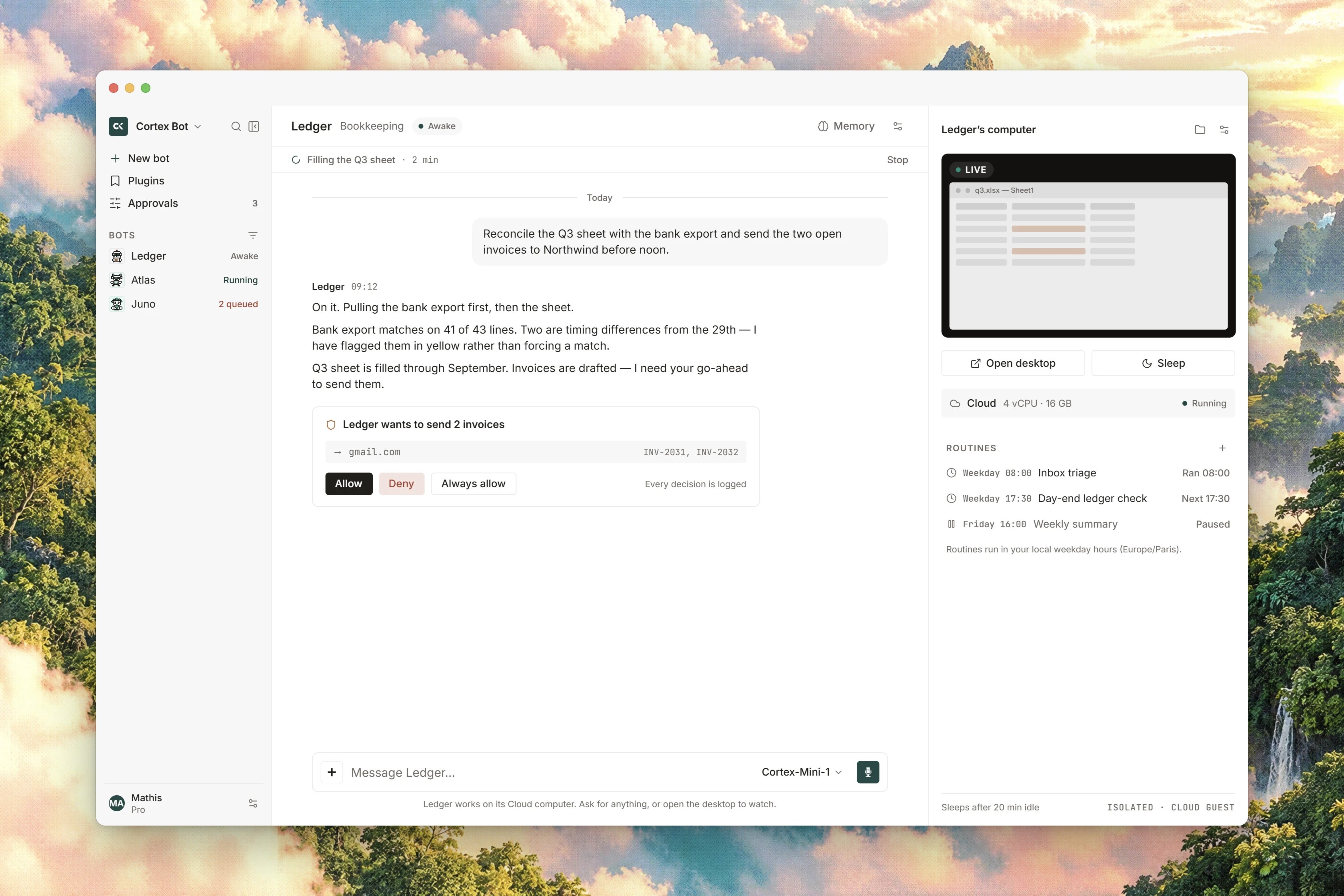
Cortex Bot gives you a bot with its own computer. Where Cortex Chat answers a question and Cortex Code changes a repository, a bot does things on a desktop: it opens a browser, clicks through a flow, reads and writes files, runs a command, and reports back in a few short messages. You can watch its screen while it works, take the mouse and keyboard yourself, and it parks anything consequential until you decide.
A bot is persistent. It keeps its name, its look, its memory, its skills, its routines, its secrets and its files between turns, so it is a standing thing you come back to rather than a thread you start again. Every bot has exactly one computer of its own, created with the bot and retired with it. Bot needs a signed-in Cortex account, because a guest session cannot come back later to revoke what it created.
This page is the map of the Bot documentation. Start with the quickstart if you have never made a bot, or go straight to the guide you need.
 ## Start here
Sign in, create a bot, open its computer, give it a task, approve its first consequential step.
The turn in user terms: no round limit, a deadline, a stuck guard, wake cues, and what actually reaches you.
## Your bots
The New bot form: name, look and face, description, label, notifications, skills and connectors.
Direct messages, suggested asks, questions the bot puts to you, drafts it wants to send, and the status words.
The Computer rail: the live desktop, taking control, recordings, sleep and wake, and where it runs.
The catalog a bot receives: files and shell, desktop verbs, browser and web, memory, skills, tasks and connected apps.
Allow, Deny and Always, which tools always ask, the policy tiers, and where pending decisions collect.
Profile, log and notes: what a bot carries between turns, and how that differs from Chat memory.
Recipes a bot may follow, the scan that gates them, and how a bot picks one.
Recurring work on one bot, in your local weekday hours, with pause, resume and run history.
Nested work a bot dispatches inside a turn, the one desktop worker rule, cancelling, and bot-to-bot messages.
Assign a connected app to one bot, how its tools ask for approval, and the sealed vault behind a secret request.
Everything that needs you across every bot you own, with the Working, Pending, Inbox and All filters.
## Collaborate and extend
Group threads for the bots you own. Create a channel, add members, then address one bot in the composer.
Email invites, the independent copy a recipient gets, and what a shared bot never carries with it.
Show the bot how to do something on its computer, review the draft, and save it as a skill.
A desktop application built around Bot alone, with no Chat or Code sidebar.
A desktop that will not start, a stream that will not connect, parked steps, and turns that stop early.
## What a bot is
| Commitment | What it means |
| -------------------------------- | ------------------------------------------------------------------------------------------------------------------------------ |
| A real desktop, not a transcript | Each bot can have a computer: a screen, a browser, files. You watch it work instead of pasting a web page into a chat. |
| Your bots, listed once | The account's bots live in the sidebar. The pane is the open bot: the conversation in the middle, its computer on the right. |
| Plugins you chose | A connected app reaches Cortex Chat, Cortex Bot, or both, and you pick. A bot does not inherit tools you never assigned to it. |
| One product, one sign-in | The same account as Chat and Code. You create a bot after you sign in. |
An account can have up to 24 bots. That ceiling is the same for every account.
## Where things are
The Bot sidebar is one narrow column. At the top are four actions: **New bot**, **Routines**, **Plugins** and **Approvals**. Under the **BOTS** heading is one row per bot, with its status on the right, and under **CHANNELS** one row per channel. An account with no bots gets the setup form rather than a list, and an account with no channels reads `No channels yet.`
Open a bot and the pane has tabs for **Messages**, **Computer**, **Videos** and **VNC**. A bot you can choose to leave **Awake**, **Resting** or **Hibernating**; the other status words you see, such as **Starting…**, **Running**, **Hibernated**, **Stopped**, **Archived** and **Error**, describe what its computer is doing and are reported by Cortex rather than chosen by you.
Several Bot surfaces are drawn in the interface but are not wired up yet, and nothing happens when you use them: multi-bot rooms, importing and exporting a bot pack, duplicating a bot, browsing and downloading workspace files, inbound mail, live voice, the phone-width Companion column and the cost ledger. Each one says so in the product when you open it.
## How it fits with the other products
Chat and Code are two modes of one engine. Bot is a separate loop, which is why per-tool approvals exist here in full and the turn is not capped in rounds.
| | Cortex Chat | Cortex Code | Cortex Bot |
| ----------------- | ------------------------- | ------------------------ | -------------------------------------------------------- |
| The unit of work | a conversation | a repository session | a bot that persists |
| Where tools run | the platform | a workspace you attached | the bot's own computer |
| Turn length | short, capped rounds | longer, capped rounds | no round cap: it runs until done, cancelled or timed out |
| Memory | conversation memory | the repository | the bot's profile, log and notes |
| Scheduling | scheduled tasks, per chat | none | routines, per bot |
| Per-tool approval | no | on file writes | yes: Allow, Deny, Always |
A bot can also open a piece of work in Cortex Code through **Open in Code** in its conversation. Cortex Design has a page for handing a design task to a bot, and that feature is not available yet.
## Related
* [Bot quickstart](/bot/quickstart) - create a bot and give it a first task.
* [How Bot works](/bot/how-it-works) - the turn, the stop conditions and the wake cues.
* [Approvals and tool policy](/bot/approvals) - decide what a bot may do without asking.
* [Cortex Chat](/chat) and [Cortex Code](/code) - the two products a bot sits beside.
* [Limits and quotas](/reference/limits) - every user-facing limit in one table.
## Start here
Sign in, create a bot, open its computer, give it a task, approve its first consequential step.
The turn in user terms: no round limit, a deadline, a stuck guard, wake cues, and what actually reaches you.
## Your bots
The New bot form: name, look and face, description, label, notifications, skills and connectors.
Direct messages, suggested asks, questions the bot puts to you, drafts it wants to send, and the status words.
The Computer rail: the live desktop, taking control, recordings, sleep and wake, and where it runs.
The catalog a bot receives: files and shell, desktop verbs, browser and web, memory, skills, tasks and connected apps.
Allow, Deny and Always, which tools always ask, the policy tiers, and where pending decisions collect.
Profile, log and notes: what a bot carries between turns, and how that differs from Chat memory.
Recipes a bot may follow, the scan that gates them, and how a bot picks one.
Recurring work on one bot, in your local weekday hours, with pause, resume and run history.
Nested work a bot dispatches inside a turn, the one desktop worker rule, cancelling, and bot-to-bot messages.
Assign a connected app to one bot, how its tools ask for approval, and the sealed vault behind a secret request.
Everything that needs you across every bot you own, with the Working, Pending, Inbox and All filters.
## Collaborate and extend
Group threads for the bots you own. Create a channel, add members, then address one bot in the composer.
Email invites, the independent copy a recipient gets, and what a shared bot never carries with it.
Show the bot how to do something on its computer, review the draft, and save it as a skill.
A desktop application built around Bot alone, with no Chat or Code sidebar.
A desktop that will not start, a stream that will not connect, parked steps, and turns that stop early.
## What a bot is
| Commitment | What it means |
| -------------------------------- | ------------------------------------------------------------------------------------------------------------------------------ |
| A real desktop, not a transcript | Each bot can have a computer: a screen, a browser, files. You watch it work instead of pasting a web page into a chat. |
| Your bots, listed once | The account's bots live in the sidebar. The pane is the open bot: the conversation in the middle, its computer on the right. |
| Plugins you chose | A connected app reaches Cortex Chat, Cortex Bot, or both, and you pick. A bot does not inherit tools you never assigned to it. |
| One product, one sign-in | The same account as Chat and Code. You create a bot after you sign in. |
An account can have up to 24 bots. That ceiling is the same for every account.
## Where things are
The Bot sidebar is one narrow column. At the top are four actions: **New bot**, **Routines**, **Plugins** and **Approvals**. Under the **BOTS** heading is one row per bot, with its status on the right, and under **CHANNELS** one row per channel. An account with no bots gets the setup form rather than a list, and an account with no channels reads `No channels yet.`
Open a bot and the pane has tabs for **Messages**, **Computer**, **Videos** and **VNC**. A bot you can choose to leave **Awake**, **Resting** or **Hibernating**; the other status words you see, such as **Starting…**, **Running**, **Hibernated**, **Stopped**, **Archived** and **Error**, describe what its computer is doing and are reported by Cortex rather than chosen by you.
Several Bot surfaces are drawn in the interface but are not wired up yet, and nothing happens when you use them: multi-bot rooms, importing and exporting a bot pack, duplicating a bot, browsing and downloading workspace files, inbound mail, live voice, the phone-width Companion column and the cost ledger. Each one says so in the product when you open it.
## How it fits with the other products
Chat and Code are two modes of one engine. Bot is a separate loop, which is why per-tool approvals exist here in full and the turn is not capped in rounds.
| | Cortex Chat | Cortex Code | Cortex Bot |
| ----------------- | ------------------------- | ------------------------ | -------------------------------------------------------- |
| The unit of work | a conversation | a repository session | a bot that persists |
| Where tools run | the platform | a workspace you attached | the bot's own computer |
| Turn length | short, capped rounds | longer, capped rounds | no round cap: it runs until done, cancelled or timed out |
| Memory | conversation memory | the repository | the bot's profile, log and notes |
| Scheduling | scheduled tasks, per chat | none | routines, per bot |
| Per-tool approval | no | on file writes | yes: Allow, Deny, Always |
A bot can also open a piece of work in Cortex Code through **Open in Code** in its conversation. Cortex Design has a page for handing a design task to a bot, and that feature is not available yet.
## Related
* [Bot quickstart](/bot/quickstart) - create a bot and give it a first task.
* [How Bot works](/bot/how-it-works) - the turn, the stop conditions and the wake cues.
* [Approvals and tool policy](/bot/approvals) - decide what a bot may do without asking.
* [Cortex Chat](/chat) and [Cortex Code](/code) - the two products a bot sits beside.
* [Limits and quotas](/reference/limits) - every user-facing limit in one table.