> ## Documentation Index
> Fetch the complete documentation index at: https://docs.cortex.foundation/llms.txt
> Use this file to discover all available pages before exploring further.
# Chat canvases
> A document that sits beside a conversation. Cortex drafts into it, you edit it, and it saves itself while you type.
A Chat canvas is a plain document that opens in a rail beside a conversation. Cortex can draft into it while you watch, and you can type in the same document at the same time. It is the right place for anything you want to shape over several turns, such as an announcement or a short spec, instead of scrolling back through the transcript to find the good paragraph.
This page covers how to open a canvas, how it saves itself, how to ask Cortex to rewrite part of it, how a canvas differs from a plan, a Library note, a Code file and a Design canvas, and what to do when the rail will not open or save.
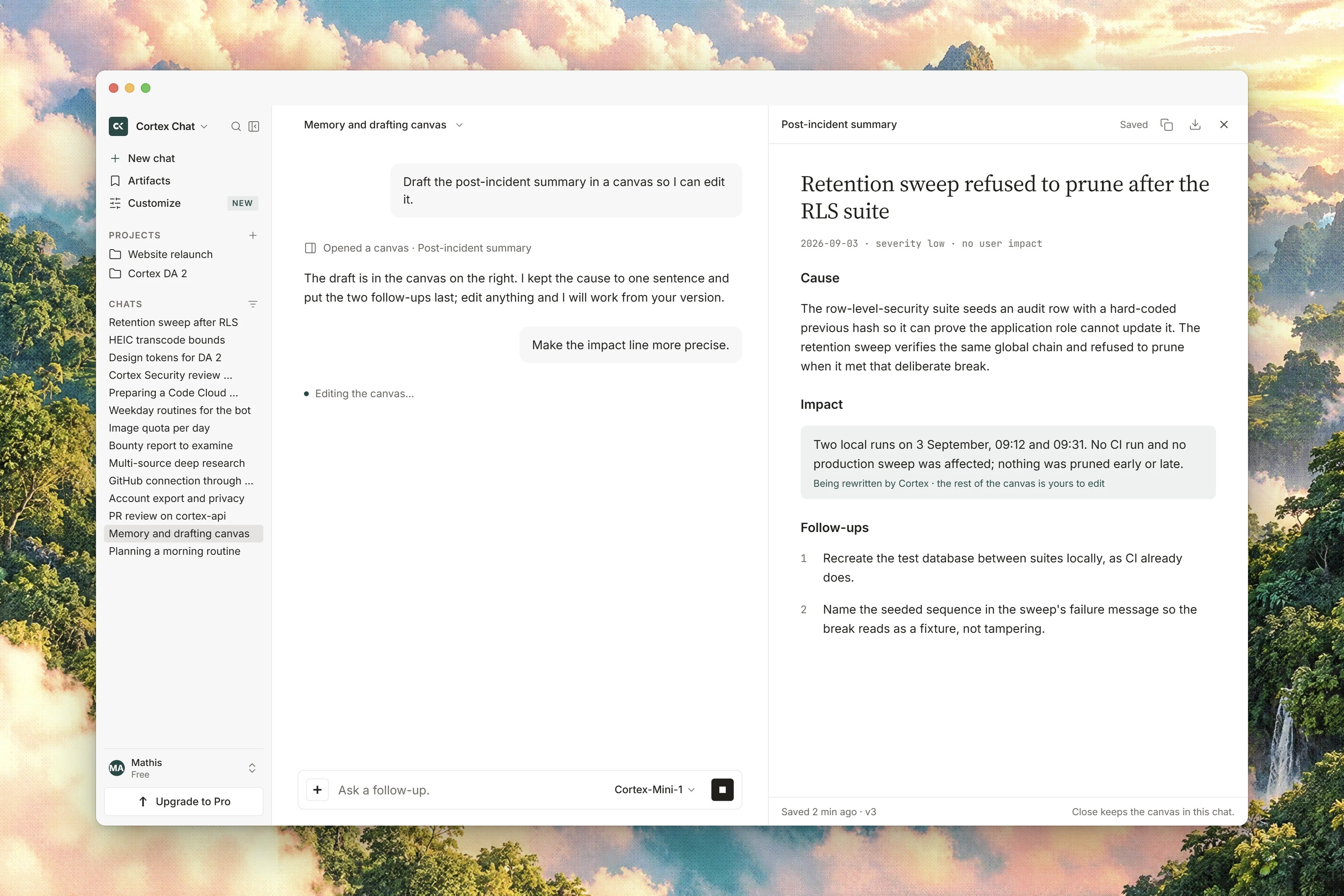 ## Open a canvas
Type `/` in the composer to open the slash palette, then choose **Canvas**. Its hint reads `Open a document`. The rail opens on an empty document.
Select text inside an answer. The selection menu, **Selected answer actions**, offers **Start writing**, which starts a canvas from that selection.
A canvas belongs to the conversation it was created in, so reopening that conversation is how you get back to the document. A conversation link can also carry a document reference, in which case the rail opens on that document straight away.
## Work in the document
The rail has two fields. The title field is **Document title**, with the placeholder `Untitled document`. The body field is **Document body**, with the placeholder `Start writing, or ask Cortex to draft this document.`
You do not save the document yourself. About half a second after you stop typing, the rail saves what you have written: the status reads `Saving…` while the save is in flight and `Saved` when it lands. **Close** puts the rail away and flushes any pending save before it closes, so closing the rail immediately after a sentence does not lose the sentence.
| What the rail shows | What it means |
| ----------------------------------- | ----------------------------------------------------------------------------- |
| `Loading` | the document is being fetched |
| `Saving…` | your last edits are being written |
| `Saved` | everything you have typed is stored |
| `The document could not be opened.` | the document did not load; the rail says so rather than showing an empty one |
| `The document could not be saved.` | the last save failed; copy anything you cannot afford to lose before retrying |
## Ask Cortex to write into it
Once the rail is open, the conversation is your editor of last resort: ask in the composer for the change you want, in the same words you would use with a person. "Tighten the intro." "Add a section on pricing." The rail refreshes as Cortex writes, and you can keep typing in it meanwhile. A canvas is a document Cortex writes into, not a draft message waiting in the composer, so nothing is pending for you to send.
The model a conversation uses is chosen when the chat starts and does not change for that chat. See [Models and thinking](/chat/models).
## Canvas, plan, note, or file?
Four different objects can come out of one conversation, and only the first of them is a canvas.
| You want | Use |
| ---------------------------------------------------------------- | ----------------------------------- |
| A document you shape over several turns, beside one conversation | A canvas, this page |
| A task list that stays linked to the chat and outlives it | [Planning](/chat/plans) |
| One passage of an answer kept as a document | **Save to Library**, below |
| A file you attached, or one Cortex produced | [Library](/chat/library) |
| A board of frames rather than prose | [Design canvases](/design/canvases) |
A Chat canvas is a text document attached to one conversation and opened from that conversation. It is not a design surface, and it is not a file inside a Code session.
## Save a selection as a Library note
When you only want to keep a paragraph, a note is lighter than a canvas.
Choose **Save to Library** from the selection menu.
The dialog **Save as Library note** explains: `Edit the title before saving this selection as a Library document.` Edit the **Title** field.
Press **Save note**. The confirmation reads `Note saved to Library`, and the dialog states the scope: `Saved in Chat Artifacts. Available from Chat, Code and Bot.` If it fails, the message is `The note could not be saved` with `Please try again.`
How many canvases one conversation can hold, and how large a single canvas can be, are not published limits. If you are drafting something long, keep a copy outside Cortex as you go.
## Related
* [Conversations](/chat/conversations) for what else the transcript header can do with a chat.
* [Export documents](/chat/document-export) to turn an answer into a file.
* [Library](/chat/library) for where saved notes and attachments live.
* [Planning](/chat/plans) for the task-list object linked to a chat.
* [Design canvases](/design/canvases) for the other thing called a canvas.
## Open a canvas
Type `/` in the composer to open the slash palette, then choose **Canvas**. Its hint reads `Open a document`. The rail opens on an empty document.
Select text inside an answer. The selection menu, **Selected answer actions**, offers **Start writing**, which starts a canvas from that selection.
A canvas belongs to the conversation it was created in, so reopening that conversation is how you get back to the document. A conversation link can also carry a document reference, in which case the rail opens on that document straight away.
## Work in the document
The rail has two fields. The title field is **Document title**, with the placeholder `Untitled document`. The body field is **Document body**, with the placeholder `Start writing, or ask Cortex to draft this document.`
You do not save the document yourself. About half a second after you stop typing, the rail saves what you have written: the status reads `Saving…` while the save is in flight and `Saved` when it lands. **Close** puts the rail away and flushes any pending save before it closes, so closing the rail immediately after a sentence does not lose the sentence.
| What the rail shows | What it means |
| ----------------------------------- | ----------------------------------------------------------------------------- |
| `Loading` | the document is being fetched |
| `Saving…` | your last edits are being written |
| `Saved` | everything you have typed is stored |
| `The document could not be opened.` | the document did not load; the rail says so rather than showing an empty one |
| `The document could not be saved.` | the last save failed; copy anything you cannot afford to lose before retrying |
## Ask Cortex to write into it
Once the rail is open, the conversation is your editor of last resort: ask in the composer for the change you want, in the same words you would use with a person. "Tighten the intro." "Add a section on pricing." The rail refreshes as Cortex writes, and you can keep typing in it meanwhile. A canvas is a document Cortex writes into, not a draft message waiting in the composer, so nothing is pending for you to send.
The model a conversation uses is chosen when the chat starts and does not change for that chat. See [Models and thinking](/chat/models).
## Canvas, plan, note, or file?
Four different objects can come out of one conversation, and only the first of them is a canvas.
| You want | Use |
| ---------------------------------------------------------------- | ----------------------------------- |
| A document you shape over several turns, beside one conversation | A canvas, this page |
| A task list that stays linked to the chat and outlives it | [Planning](/chat/plans) |
| One passage of an answer kept as a document | **Save to Library**, below |
| A file you attached, or one Cortex produced | [Library](/chat/library) |
| A board of frames rather than prose | [Design canvases](/design/canvases) |
A Chat canvas is a text document attached to one conversation and opened from that conversation. It is not a design surface, and it is not a file inside a Code session.
## Save a selection as a Library note
When you only want to keep a paragraph, a note is lighter than a canvas.
Choose **Save to Library** from the selection menu.
The dialog **Save as Library note** explains: `Edit the title before saving this selection as a Library document.` Edit the **Title** field.
Press **Save note**. The confirmation reads `Note saved to Library`, and the dialog states the scope: `Saved in Chat Artifacts. Available from Chat, Code and Bot.` If it fails, the message is `The note could not be saved` with `Please try again.`
How many canvases one conversation can hold, and how large a single canvas can be, are not published limits. If you are drafting something long, keep a copy outside Cortex as you go.
## Related
* [Conversations](/chat/conversations) for what else the transcript header can do with a chat.
* [Export documents](/chat/document-export) to turn an answer into a file.
* [Library](/chat/library) for where saved notes and attachments live.
* [Planning](/chat/plans) for the task-list object linked to a chat.
* [Design canvases](/design/canvases) for the other thing called a canvas.