> ## Documentation Index
> Fetch the complete documentation index at: https://docs.cortex.foundation/llms.txt
> Use this file to discover all available pages before exploring further.
# Connectors
> Connect an app to Cortex Chat and Cortex Bot, choose where its tools appear, set when Cortex asks before it acts, and disconnect
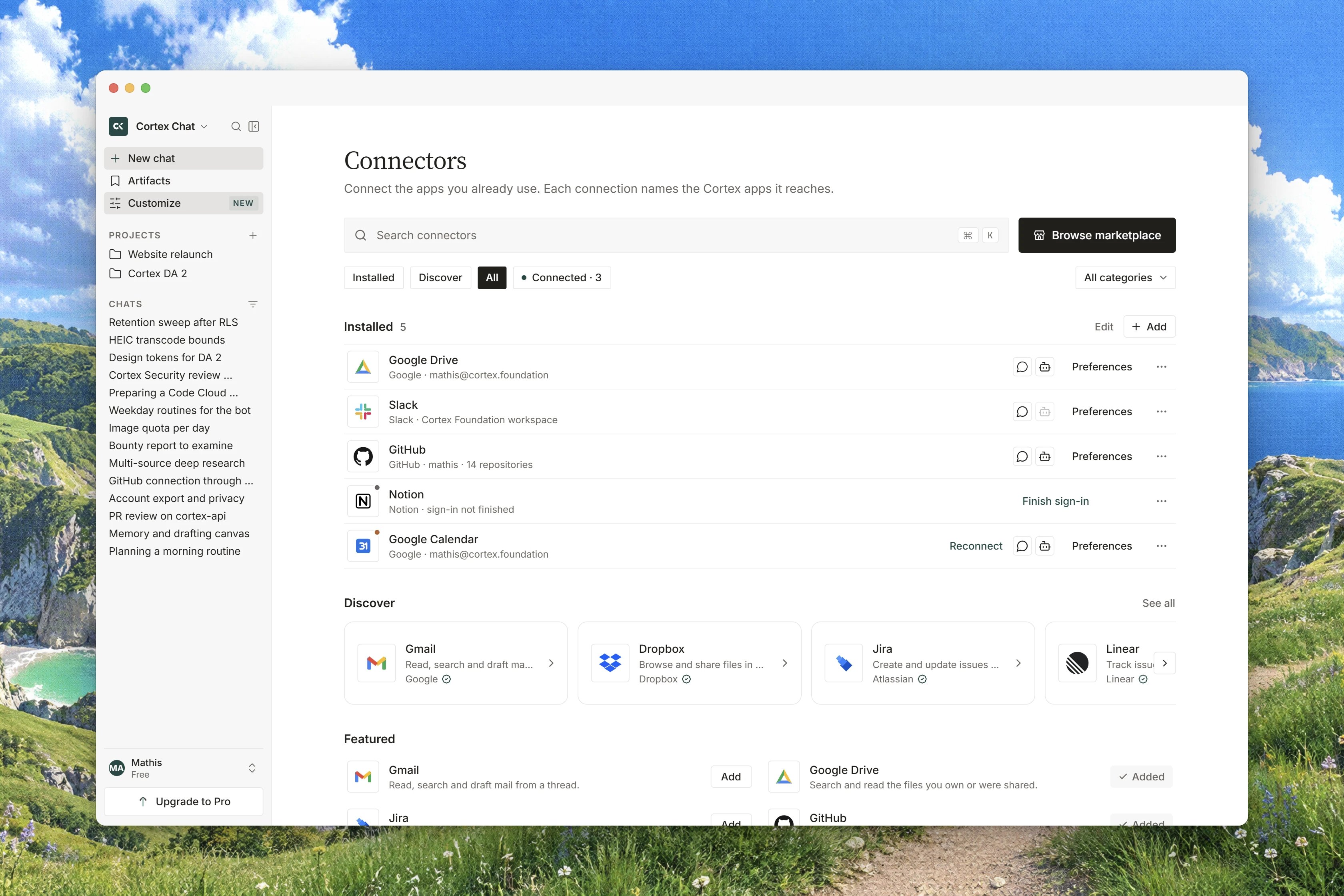
**Connectors** is where you hand Cortex access to the apps you already use, so a chat can read your data and act on it. The page says so in its own lead: **Give Cortex access to your tools to read your data and act on it. You stay signed in with the provider: Cortex never sees your passwords.** Elsewhere in the product the same things are called **connected apps**, which is the plain-English name for a connector you have already set up.
The heading on the page itself reads **Connectors**, and that is the name to look for. Elsewhere the product refers to it informally as Customize: the `/` list in the chat composer, for instance, tells you to turn a skill on **under Customize**. If you followed that wording, this is the page it meant.
This page covers what sits on the board, how to find an app, how connecting works, how to choose which products may use it, how often Cortex asks before an app makes a change, and how to disconnect.
 ## What is on the page
The board is assembled in a fixed order:
1. A sign-in notice, if you are browsing as a guest.
2. The **Data** card, the first-party connector for business metrics. See [Cortex Data](/chat/data).
3. The **Skills** panel, where you turn recipes on for Chat or for a bot. See [Skills in Chat](/chat/skills).
4. The connector catalogue: the apps you can connect, grouped into sections or shown as a flat grid.
There is no form for adding an MCP server here. Those live in **Settings** under **Integrations**. See [MCP servers](/chat/mcp-servers).
## Find an app in the catalogue
Three filter pills sit above the catalogue, under the label **Filter connectors**: **Discover**, which is the default, **All**, and **Connected**. A **Category** control narrows the board to one kind of app, with **All categories** to clear it. Each Discover section shows six cards and a **Show all** link for the rest. The **Search connectors** field matches on name, and shows its own shortcut beside it: press Cmd + K, or Ctrl + K on Windows and Linux, to jump straight into it from anywhere on the page.
Cards carry a **Verified connector** badge where the catalogue vouches for the entry, the number of tools the app brings, and a **Connect** button (**Add** with the app's name on the compact card). Once connected, the card reads **Connected** with when it happened, and **Open** with the app's name takes you to its detail drawer. A count pill at the top of the page tallies how many apps are connected.
Nothing matched? The page answers with **No connector for** your query, then **Try another name, or browse all the categories.** and a **See all connectors** button.
The catalogue's contents change, so browse it rather than trusting a list here. Expect the familiar categories: a code host, an issue tracker, a calendar, a cloud drive.
## Connect an app
Browse **Discover**, filter by **Category**, or search for it by name.
The dialog asks **Where should this app be available?** and explains: **Choose where this app's tools appear. You can change this later without connecting again.** Pick **Cortex Chat** (**Available to the assistant in a chat.**), **Cortex Bot** (**Available to your bots while they work.**), or both, then **Continue**.
A new tab opens on the provider's own page. Cortex never sees your password. The toast tells you what to do next: **Finish connecting** the app, then **Sign in on the tab that just opened, then come back and refresh.**
The card settles on **Connected**. Cortex only ever learns that a connection exists; the credential stays with the connector catalogue.
Cortex asks for as little as the job needs, and says so on the card: **Cortex requests only the access needed to attach files and post messages you choose.**
If you arrive from somewhere else in Cortex, such as a project's **Add a source** menu, the link starts that app's connect flow directly instead of dropping you on the catalogue.
Connecting needs an account. A guest sees **Connecting an app needs an account: a guest session cannot be signed back into to revoke it later.** and a **Sign in** button instead.
## Choose where an app is available
Where an app may be used is part of connecting, not an afterthought. The connected card repeats your choice as two chips under the legend **Where this app is available**, each reading the surface name and **on** or **off**. Pressing a chip changes it, and it costs no reauthorisation.
An app has to stay available somewhere. Turning off the last surface is refused with **Choose at least one** and the rule itself: **A plugin has to be available to Cortex Chat, Cortex Bot, or both. Disconnect the app to turn it off everywhere.** Disconnecting, not unassigning, is how you switch an app off.
Connected apps do not reach Cortex Code. There is no Code surface for them.
Bots have a second gate. Turning an app on for **Cortex Bot** makes it available to bots; each bot then has its own switch, and existing bots are not switched on for you when you connect something new. A bot's switch cannot be turned on while the account-level connection is off, awaiting sign-in, needs reconnecting, has failed, or is disabled, and the refusal names which. Turning a bot's switch off always works. See [Connected apps for bots](/bot/plugins).
If a tool is called on a surface the app is not turned on for, that turn fails and tells you to turn the app on for this surface from the Connectors page.
## Decide when Cortex asks first
Each connected app carries an approval preference under the title **When to ask**, described as **How often Cortex confirms before a connected app makes a change.**
| Option | What it means |
| ------------------ | -------------------------------------- |
| **Always** | Ask before every mutating call. |
| **On changes** | Ask when the tool would write or send. |
| **Important only** | Ask only for high-impact writes. |
A freshly connected app starts on **On changes**. The same preference appears elsewhere as radio buttons labelled **Always ask**, **Before changes** and **Before important actions**.
*On changes* only ever skips a call Cortex can tell is a read. A catalogue's own "read" label can raise scrutiny but never lower it, so a writing tool still prompts. A published list of actions always asks whatever you set, and the page lists them: **These chips never cover tools that must always ask: auto-approve, opening a pull request, plugin tools as a standing grant, Design writes, nested tasks, or a git push outside cortex/\*.**
Two answers you may meet here: **This app is off for the organization and cannot be enabled here.** and **This deployment cannot store that preference yet. Cortex still asks every time.**
## Look at what an app can reach
**Open** on a connected card shows its detail drawer: **Connector**, **Details**, **Available in**, **Before this app acts**, and **What it can reach**. That last section is honest about its own limits: **Tools follow the approval chips. Cortex does not list folders or scopes from this app.**
## Read a connector's status
| Label | What it means | What to do |
| -------------------- | ------------------------------------------ | ------------------------------------------- |
| **Connected** | The connection is live. | Nothing. |
| **Awaiting sign-in** | The provider tab has not been finished. | Sign in there, come back, refresh. |
| **Reconnect** | Shown with the reason **Sign-in expired**. | Connect again. |
| **Failed** | The connection did not come up. | Reconnect, or disconnect and connect again. |
| **Disabled** | It has been switched off. | Nothing you can do from this card. |
Cards can also read **Needs sign-in** or **Available**. Failures are phrased around the app's name: it could not be connected, could not be updated, or could not be disconnected.
## Disconnect
**Disconnect** on the card turns the app off everywhere at once. That is the intended way to stop using it, since the surface chips refuse to leave an app with no surface at all.
## When the catalogue is not there
A deployment can have connected apps switched off entirely, and the page says so plainly rather than showing an empty board:
* **Apps are not available on this deployment.** with a **Try again** button.
* **Apps are not set up here** with **Connecting apps is switched off on this deployment, so there is nothing to connect yet. Whoever administers it can turn it on.**
* **Apps cannot be listed right now** with **The list of apps could not be loaded, so there is nothing to show yet. Nothing is wrong with your account, and this usually clears by itself.**
Some deployments also offer connector evaluation controls, **Run eval** with **Export JSON** and **Export HTML**. The report stays on your device until you export it, and secret-shaped values are stripped out of it. Where it is not offered, the answer is **Plugin eval is not available on this deployment.**
## Related
* [MCP servers](/chat/mcp-servers)
* [Skills in Chat](/chat/skills)
* [Cortex Data](/chat/data)
* [Page tools](/chat/page-tools)
* [Built-in tools](/chat/tools)
* [Connected apps for bots](/bot/plugins)
## What is on the page
The board is assembled in a fixed order:
1. A sign-in notice, if you are browsing as a guest.
2. The **Data** card, the first-party connector for business metrics. See [Cortex Data](/chat/data).
3. The **Skills** panel, where you turn recipes on for Chat or for a bot. See [Skills in Chat](/chat/skills).
4. The connector catalogue: the apps you can connect, grouped into sections or shown as a flat grid.
There is no form for adding an MCP server here. Those live in **Settings** under **Integrations**. See [MCP servers](/chat/mcp-servers).
## Find an app in the catalogue
Three filter pills sit above the catalogue, under the label **Filter connectors**: **Discover**, which is the default, **All**, and **Connected**. A **Category** control narrows the board to one kind of app, with **All categories** to clear it. Each Discover section shows six cards and a **Show all** link for the rest. The **Search connectors** field matches on name, and shows its own shortcut beside it: press Cmd + K, or Ctrl + K on Windows and Linux, to jump straight into it from anywhere on the page.
Cards carry a **Verified connector** badge where the catalogue vouches for the entry, the number of tools the app brings, and a **Connect** button (**Add** with the app's name on the compact card). Once connected, the card reads **Connected** with when it happened, and **Open** with the app's name takes you to its detail drawer. A count pill at the top of the page tallies how many apps are connected.
Nothing matched? The page answers with **No connector for** your query, then **Try another name, or browse all the categories.** and a **See all connectors** button.
The catalogue's contents change, so browse it rather than trusting a list here. Expect the familiar categories: a code host, an issue tracker, a calendar, a cloud drive.
## Connect an app
Browse **Discover**, filter by **Category**, or search for it by name.
The dialog asks **Where should this app be available?** and explains: **Choose where this app's tools appear. You can change this later without connecting again.** Pick **Cortex Chat** (**Available to the assistant in a chat.**), **Cortex Bot** (**Available to your bots while they work.**), or both, then **Continue**.
A new tab opens on the provider's own page. Cortex never sees your password. The toast tells you what to do next: **Finish connecting** the app, then **Sign in on the tab that just opened, then come back and refresh.**
The card settles on **Connected**. Cortex only ever learns that a connection exists; the credential stays with the connector catalogue.
Cortex asks for as little as the job needs, and says so on the card: **Cortex requests only the access needed to attach files and post messages you choose.**
If you arrive from somewhere else in Cortex, such as a project's **Add a source** menu, the link starts that app's connect flow directly instead of dropping you on the catalogue.
Connecting needs an account. A guest sees **Connecting an app needs an account: a guest session cannot be signed back into to revoke it later.** and a **Sign in** button instead.
## Choose where an app is available
Where an app may be used is part of connecting, not an afterthought. The connected card repeats your choice as two chips under the legend **Where this app is available**, each reading the surface name and **on** or **off**. Pressing a chip changes it, and it costs no reauthorisation.
An app has to stay available somewhere. Turning off the last surface is refused with **Choose at least one** and the rule itself: **A plugin has to be available to Cortex Chat, Cortex Bot, or both. Disconnect the app to turn it off everywhere.** Disconnecting, not unassigning, is how you switch an app off.
Connected apps do not reach Cortex Code. There is no Code surface for them.
Bots have a second gate. Turning an app on for **Cortex Bot** makes it available to bots; each bot then has its own switch, and existing bots are not switched on for you when you connect something new. A bot's switch cannot be turned on while the account-level connection is off, awaiting sign-in, needs reconnecting, has failed, or is disabled, and the refusal names which. Turning a bot's switch off always works. See [Connected apps for bots](/bot/plugins).
If a tool is called on a surface the app is not turned on for, that turn fails and tells you to turn the app on for this surface from the Connectors page.
## Decide when Cortex asks first
Each connected app carries an approval preference under the title **When to ask**, described as **How often Cortex confirms before a connected app makes a change.**
| Option | What it means |
| ------------------ | -------------------------------------- |
| **Always** | Ask before every mutating call. |
| **On changes** | Ask when the tool would write or send. |
| **Important only** | Ask only for high-impact writes. |
A freshly connected app starts on **On changes**. The same preference appears elsewhere as radio buttons labelled **Always ask**, **Before changes** and **Before important actions**.
*On changes* only ever skips a call Cortex can tell is a read. A catalogue's own "read" label can raise scrutiny but never lower it, so a writing tool still prompts. A published list of actions always asks whatever you set, and the page lists them: **These chips never cover tools that must always ask: auto-approve, opening a pull request, plugin tools as a standing grant, Design writes, nested tasks, or a git push outside cortex/\*.**
Two answers you may meet here: **This app is off for the organization and cannot be enabled here.** and **This deployment cannot store that preference yet. Cortex still asks every time.**
## Look at what an app can reach
**Open** on a connected card shows its detail drawer: **Connector**, **Details**, **Available in**, **Before this app acts**, and **What it can reach**. That last section is honest about its own limits: **Tools follow the approval chips. Cortex does not list folders or scopes from this app.**
## Read a connector's status
| Label | What it means | What to do |
| -------------------- | ------------------------------------------ | ------------------------------------------- |
| **Connected** | The connection is live. | Nothing. |
| **Awaiting sign-in** | The provider tab has not been finished. | Sign in there, come back, refresh. |
| **Reconnect** | Shown with the reason **Sign-in expired**. | Connect again. |
| **Failed** | The connection did not come up. | Reconnect, or disconnect and connect again. |
| **Disabled** | It has been switched off. | Nothing you can do from this card. |
Cards can also read **Needs sign-in** or **Available**. Failures are phrased around the app's name: it could not be connected, could not be updated, or could not be disconnected.
## Disconnect
**Disconnect** on the card turns the app off everywhere at once. That is the intended way to stop using it, since the surface chips refuse to leave an app with no surface at all.
## When the catalogue is not there
A deployment can have connected apps switched off entirely, and the page says so plainly rather than showing an empty board:
* **Apps are not available on this deployment.** with a **Try again** button.
* **Apps are not set up here** with **Connecting apps is switched off on this deployment, so there is nothing to connect yet. Whoever administers it can turn it on.**
* **Apps cannot be listed right now** with **The list of apps could not be loaded, so there is nothing to show yet. Nothing is wrong with your account, and this usually clears by itself.**
Some deployments also offer connector evaluation controls, **Run eval** with **Export JSON** and **Export HTML**. The report stays on your device until you export it, and secret-shaped values are stripped out of it. Where it is not offered, the answer is **Plugin eval is not available on this deployment.**
## Related
* [MCP servers](/chat/mcp-servers)
* [Skills in Chat](/chat/skills)
* [Cortex Data](/chat/data)
* [Page tools](/chat/page-tools)
* [Built-in tools](/chat/tools)
* [Connected apps for bots](/bot/plugins)