> ## Documentation Index
> Fetch the complete documentation index at: https://docs.cortex.foundation/llms.txt
> Use this file to discover all available pages before exploring further.
# Projects
> A project keeps standing instructions, its chats and its sources together, so every chat inside it starts from the same brief.
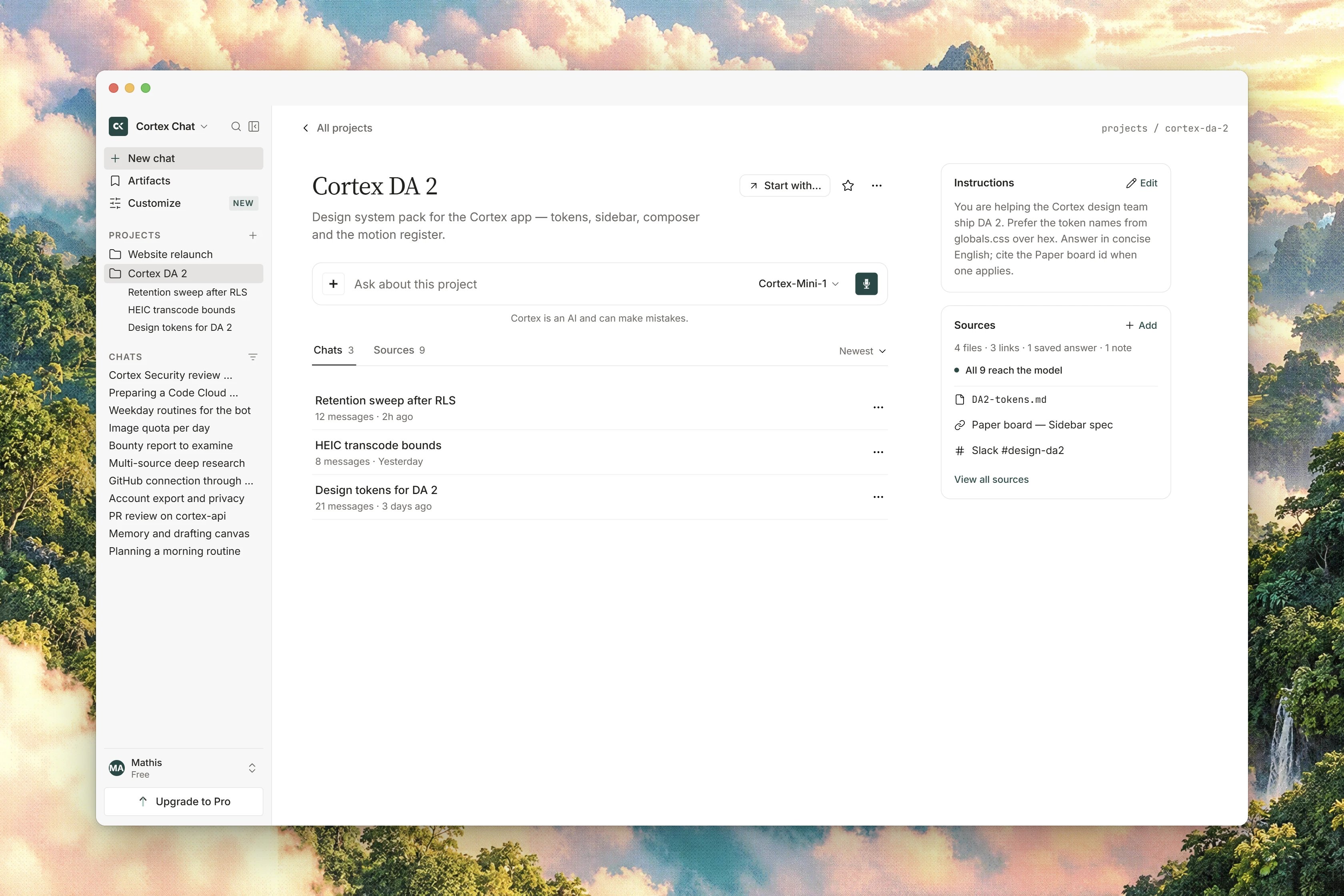
A **project** is where you keep a piece of work you come back to. It holds standing **instructions**, the **chats** you file into it, and its **sources**. The product's own summary is the clearest one: a project keeps its own instructions, chats and sources together, and everything you say in its chats is read with those instructions in front of it.
This page covers creating a project, giving it instructions and knowledge, filing an existing chat into it, choosing which memories its chats may use, handing its context to Cortex Bot or Cortex Code, and what a project cannot do yet. Projects need a signed-in account: the product says so plainly, because a guest session cannot be signed back into to recover them.
 ## What a project holds
| Part | What it does |
| ---------------- | ---------------------------------------------------------------- |
| **Instructions** | Standing guidance prepended to every chat in this project. |
| **Chats** | Conversations you start inside the project, or move in later. |
| **Sources** | Readable material every chat in the project is answered against. |
| **Memory** | A choice between account-wide memory and project-only memory. |
## Create a project and give it instructions
Type a **Name** and choose **Create project**. The dialog says it itself: instructions are optional, and can be changed at any time.
On the project, choose **Add project instructions**, or **Edit the project instructions** if there are already some. Write the brief you would otherwise repeat: audience, house style, units, what to avoid. Choose **Save instructions**.
Use the project's own composer, or choose **Start chat**. The first turn is prompted with **Ask the first question in this project**, and the project offers starters such as **Summarise the sources in this project** and **Draft a plan from the instructions**.
Keep instructions short and factual. They are read before every reply, so they cost room on every reply. The header shows a one-line reminder of how many sources the project has and whether its instructions are in place.
## Add knowledge
Choose **Add a source** and pick one of **Upload from device**, **Add text content**, or **Add a link**. You can also drop files straight onto the project: the drop zone says PDFs, notes and other text become sources for every chat.
## What a project holds
| Part | What it does |
| ---------------- | ---------------------------------------------------------------- |
| **Instructions** | Standing guidance prepended to every chat in this project. |
| **Chats** | Conversations you start inside the project, or move in later. |
| **Sources** | Readable material every chat in the project is answered against. |
| **Memory** | A choice between account-wide memory and project-only memory. |
## Create a project and give it instructions
Type a **Name** and choose **Create project**. The dialog says it itself: instructions are optional, and can be changed at any time.
On the project, choose **Add project instructions**, or **Edit the project instructions** if there are already some. Write the brief you would otherwise repeat: audience, house style, units, what to avoid. Choose **Save instructions**.
Use the project's own composer, or choose **Start chat**. The first turn is prompted with **Ask the first question in this project**, and the project offers starters such as **Summarise the sources in this project** and **Draft a plan from the instructions**.
Keep instructions short and factual. They are read before every reply, so they cost room on every reply. The header shows a one-line reminder of how many sources the project has and whether its instructions are in place.
## Add knowledge
Choose **Add a source** and pick one of **Upload from device**, **Add text content**, or **Add a link**. You can also drop files straight onto the project: the drop zone says PDFs, notes and other text become sources for every chat.
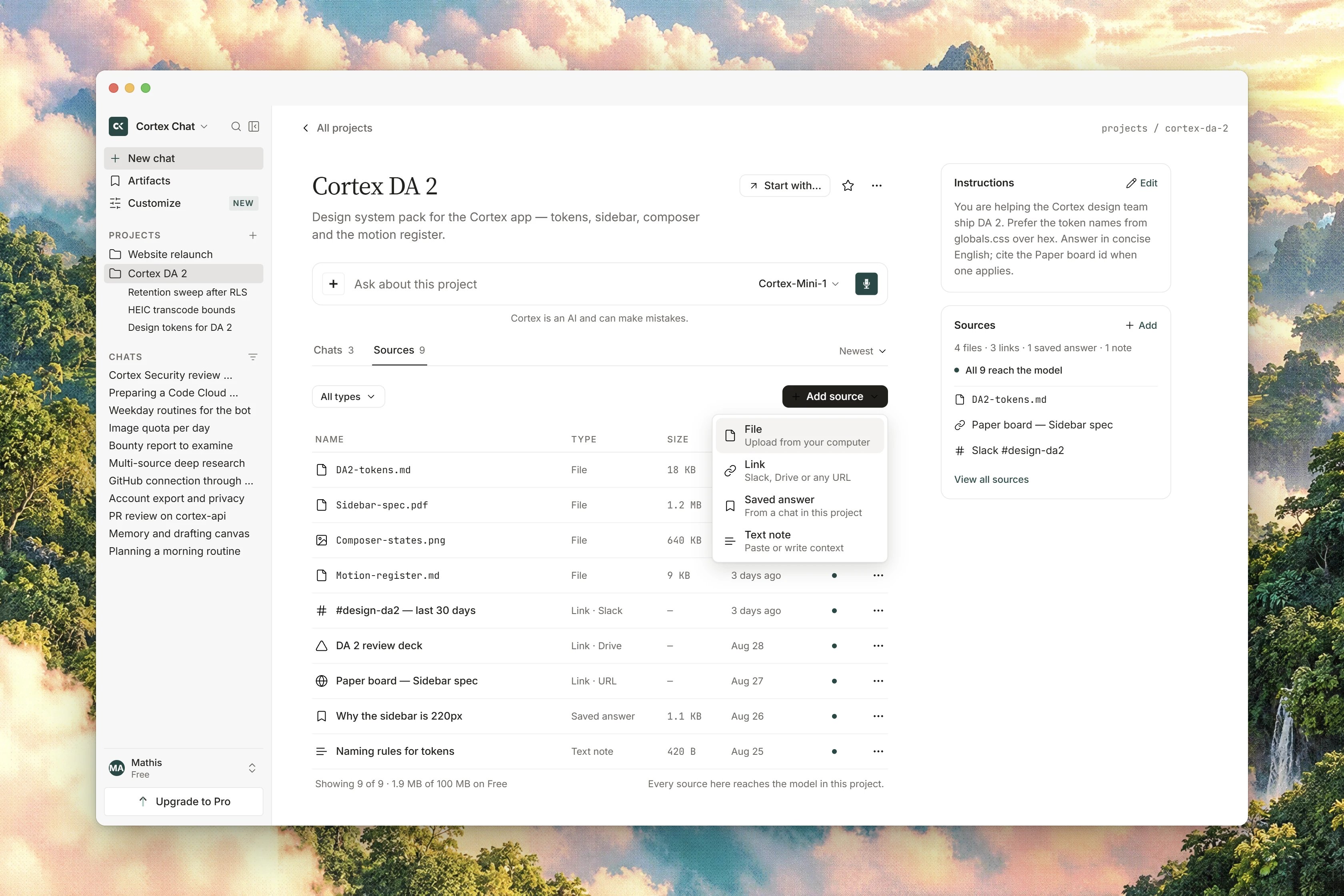 * **A link** is fetched by Cortex and stored as a source for the project. Cortex refreshes a link source once it is a day stale, so a page that changes does not go quietly out of date.
* **Pasted text** needs a **Title** and a body. It is stored and listed as **Pasted text**.
* **A file** can come from your device or from a file that is already in your [Library](/chat/library). Sources are chipped by kind: **PDF**, **Image**, **Code**, **Document**.
* Use the **Filter sources** control to switch between **All** and **Files**, and **Remove** on a row to take a source out.
Deleting a file from your Library unlinks it from any project that used it as a source, so the project stops answering against it.
Attachments belong on a chat turn, not on the project composer. If you try to attach a file there, the project tells you so and the file is not added. Add it as a source instead, or attach it inside a chat. See [Attachments](/chat/attachments).
## How instructions and sources reach an answer
Before the model answers a turn inside a project, Cortex puts the project's instructions in front of the conversation and adds the project's readable sources. If the extracted text of those sources is small enough it is included whole, up to roughly 32,000 characters. Past that, Cortex retrieves only the passages that match your question, up to eight passages and about 6,000 characters.
Sources are always handed to the model as untrusted material. A document you added cannot give Cortex instructions, however it is worded. Only the project's own instructions do that.
If retrieval is having trouble on a large project, the turn tells you so with **Project files unavailable** rather than answering as though the sources had been read. Retry the turn.
## File an existing chat into a project
Open the chat and choose **Move to project** in the thread header, then pick the project. A conversation belongs to at most one project. A **Temporary chat** has no **Move to project** and no **Pin**: those controls are hidden rather than shown greyed out.
Pinned items are shared between conversations and projects, with room for 20 across the account. A pinned project leaves **Recents** and appears in the pinned section instead.
## Choose which memories the project uses
Inside the project, the **Memory** block sets whether its chats also read account-wide memory:
* **Account memory** lets this project use memories saved across your account.
* **Project only** means only memories saved in this project are used here, and account memories stay where they are.
Switching the scope never deletes anything. It changes what is read. See [Memory](/chat/memory) for the full surface.
## Continue elsewhere
The **Continue elsewhere** block hands the project's context to another product. Chat stays the home for Library, research and decks.
* **Open in Bot** drops a summary into a bot's inbox: a short excerpt of the instructions, plus the titles, domains and kinds of the sources. The source contents are not sent. You need a bot to hand to. See [Cortex Bot](/bot/index).
* **Open in Code** opens a Cloud session from a **repository** source. A project with no repository source cannot hand off to Code. See [Cortex Code](/code/index).
If the handoff cannot start, the project says so and nothing is changed.
## Delete or restore a project
**Delete project** hides the project. Restoring brings it back with its chats and its files, so a deletion is recoverable rather than final.
## What a project cannot do yet
Projects are single-account today. The **Members** block states that a guest cannot be added, and an invite is refused outright rather than half-built, so there is no way to share a project with a teammate. The project's **Connected apps** block carries a **Soon** badge and is not usable yet: connect apps for Chat on the [Connectors](/chat/plugins) page instead.
## Related
* [Library](/chat/library) - the file store a project draws its file sources from
* [Memory](/chat/memory) - account-wide memory, and how a project narrows it
* [Planning](/chat/plans) - task lists started from a chat
* [Conversations](/chat/conversations) - the thread header, pinning and temporary chats
* [Sharing and teams](/chat/sharing) - what is per account today
* **A link** is fetched by Cortex and stored as a source for the project. Cortex refreshes a link source once it is a day stale, so a page that changes does not go quietly out of date.
* **Pasted text** needs a **Title** and a body. It is stored and listed as **Pasted text**.
* **A file** can come from your device or from a file that is already in your [Library](/chat/library). Sources are chipped by kind: **PDF**, **Image**, **Code**, **Document**.
* Use the **Filter sources** control to switch between **All** and **Files**, and **Remove** on a row to take a source out.
Deleting a file from your Library unlinks it from any project that used it as a source, so the project stops answering against it.
Attachments belong on a chat turn, not on the project composer. If you try to attach a file there, the project tells you so and the file is not added. Add it as a source instead, or attach it inside a chat. See [Attachments](/chat/attachments).
## How instructions and sources reach an answer
Before the model answers a turn inside a project, Cortex puts the project's instructions in front of the conversation and adds the project's readable sources. If the extracted text of those sources is small enough it is included whole, up to roughly 32,000 characters. Past that, Cortex retrieves only the passages that match your question, up to eight passages and about 6,000 characters.
Sources are always handed to the model as untrusted material. A document you added cannot give Cortex instructions, however it is worded. Only the project's own instructions do that.
If retrieval is having trouble on a large project, the turn tells you so with **Project files unavailable** rather than answering as though the sources had been read. Retry the turn.
## File an existing chat into a project
Open the chat and choose **Move to project** in the thread header, then pick the project. A conversation belongs to at most one project. A **Temporary chat** has no **Move to project** and no **Pin**: those controls are hidden rather than shown greyed out.
Pinned items are shared between conversations and projects, with room for 20 across the account. A pinned project leaves **Recents** and appears in the pinned section instead.
## Choose which memories the project uses
Inside the project, the **Memory** block sets whether its chats also read account-wide memory:
* **Account memory** lets this project use memories saved across your account.
* **Project only** means only memories saved in this project are used here, and account memories stay where they are.
Switching the scope never deletes anything. It changes what is read. See [Memory](/chat/memory) for the full surface.
## Continue elsewhere
The **Continue elsewhere** block hands the project's context to another product. Chat stays the home for Library, research and decks.
* **Open in Bot** drops a summary into a bot's inbox: a short excerpt of the instructions, plus the titles, domains and kinds of the sources. The source contents are not sent. You need a bot to hand to. See [Cortex Bot](/bot/index).
* **Open in Code** opens a Cloud session from a **repository** source. A project with no repository source cannot hand off to Code. See [Cortex Code](/code/index).
If the handoff cannot start, the project says so and nothing is changed.
## Delete or restore a project
**Delete project** hides the project. Restoring brings it back with its chats and its files, so a deletion is recoverable rather than final.
## What a project cannot do yet
Projects are single-account today. The **Members** block states that a guest cannot be added, and an invite is refused outright rather than half-built, so there is no way to share a project with a teammate. The project's **Connected apps** block carries a **Soon** badge and is not usable yet: connect apps for Chat on the [Connectors](/chat/plugins) page instead.
## Related
* [Library](/chat/library) - the file store a project draws its file sources from
* [Memory](/chat/memory) - account-wide memory, and how a project narrows it
* [Planning](/chat/plans) - task lists started from a chat
* [Conversations](/chat/conversations) - the thread header, pinning and temporary chats
* [Sharing and teams](/chat/sharing) - what is per account today