> ## Documentation Index
> Fetch the complete documentation index at: https://docs.cortex.foundation/llms.txt
> Use this file to discover all available pages before exploring further.
# Chat quickstart
> Send your first message, read the answer, pick a model, attach a file, and keep the thread in a project
This walk-through takes a few minutes and starts from nothing. The first three steps work signed out, so you can try Cortex Chat before you make an account. The last three need an account, because uploads and projects belong to a signed-in user.
You will send a message, watch the answer being written, choose the model and how long it thinks, then sign in to attach a file and file the thread away.
## Your first conversation
Go to [cortex.foundation](https://cortex.foundation). Chat is what you land on, and the page greets you with **Good morning**, **Good afternoon** or **Good evening**.
Type into the box labelled **Ask anything, or pick an app below…**, or click one of the example prompts such as **Plan a 5-day trip to Tokyo**. Press Enter, or use the **Send message** button. Shift and Enter together add a line instead of sending.
One message can hold up to 50,000 characters. Past 600 characters of draft the composer starts showing how much of that you have used.
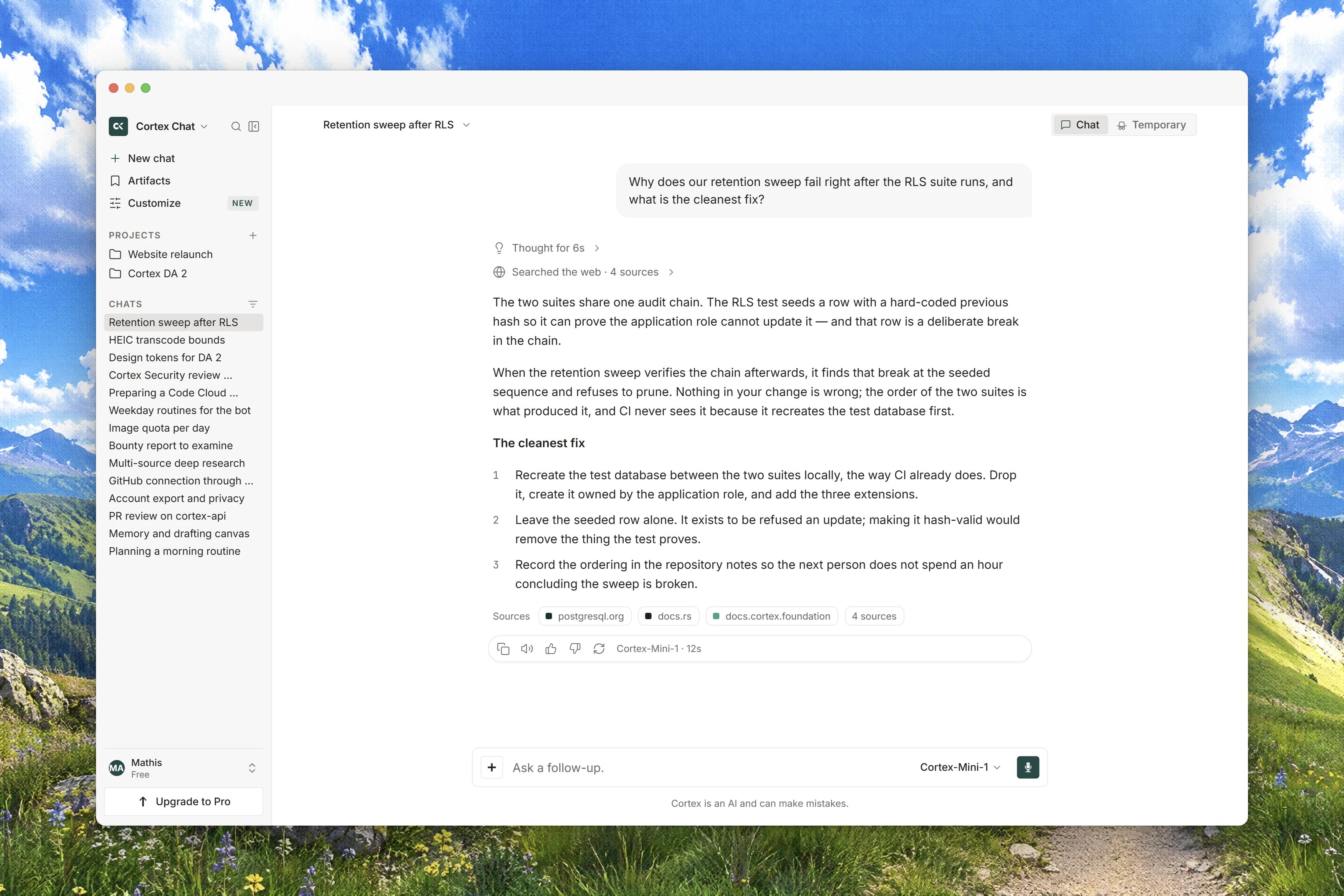
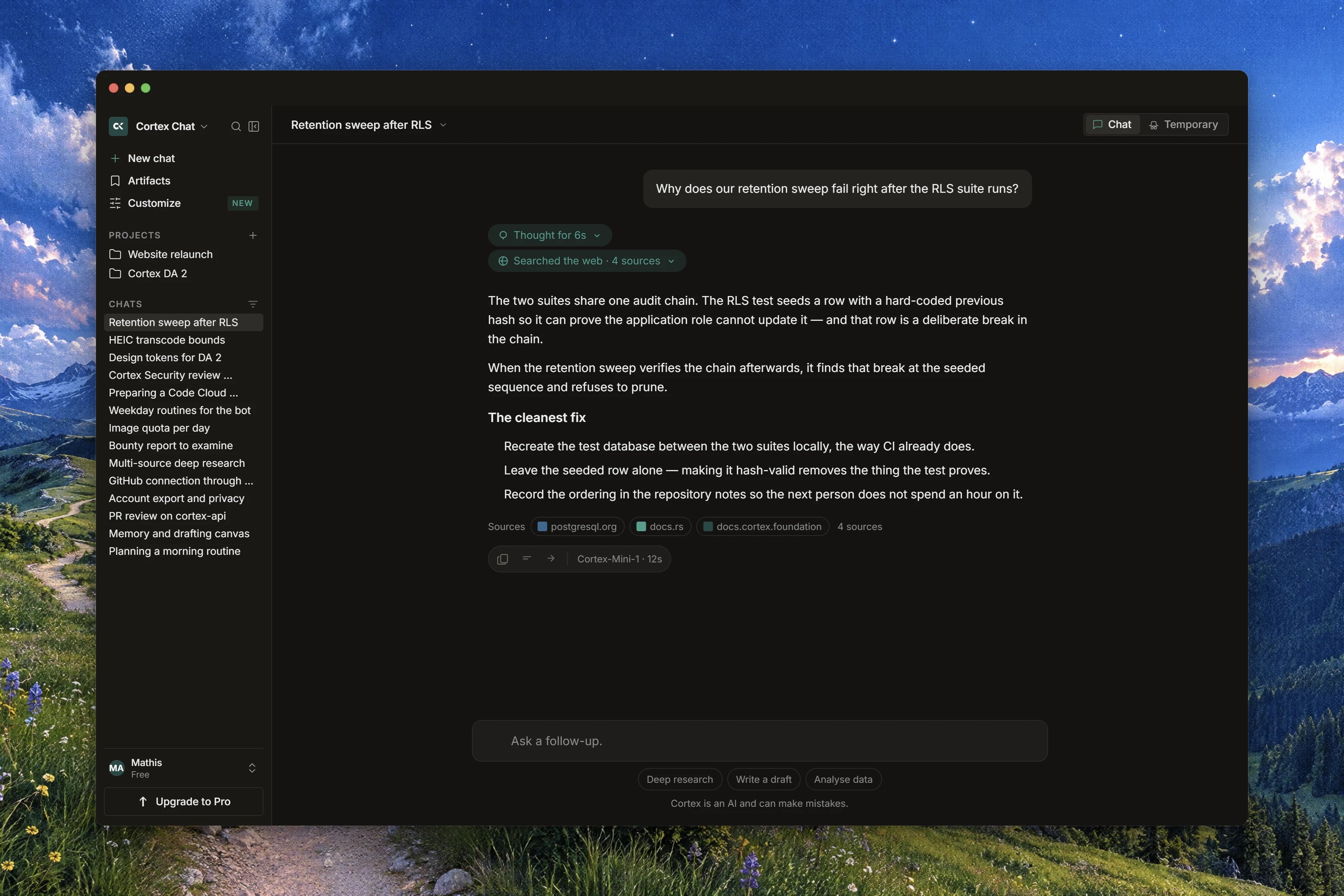
The page becomes a conversation without reloading, and the answer is written in front of you rather than appearing all at once.
Along the way you may see a **Thinking** block that fills and then collapses to a line saying how long Cortex thought, and one-line rows for any tool it used, such as *Searched the web*. Numbered citations point at their source.
To cut an answer short, press **Stop responding** or Escape. The card then reads **Stopped**, with **Continue** to pick the same answer back up and **Regenerate** to ask again from scratch.
Click the model chip under the box. It shows the name of the model in use, with no label in front of it.
Choose **Cortex 1 Mini** or **Cortex Teutonic-1**. Both carry a **PREVIEW** badge, which is a maturity signal rather than a different service, and neither one depends on your plan. Under **THINKING**, pick **Low**, **Medium** or **High**; higher thinking spends more time before answering.
The model belongs to the conversation and is fixed once the chat has started. To use a different one for a single message, open **This message only**; the chip then says the choice applies to your next message and that the session default is unchanged. To change the model for good, start a new chat.
Sign in with your Cortex account. Signing in raises your allowance and unlocks uploads, projects, memory, plans and web search, all of which a guest does not have.
Choose **Attach a file**, then pick a file from your computer, **From your Library**, or **Cloud drives** (a drive you have not connected yet shows **Connect**).
The chip shows an uploading percentage and then the file name. The stated ceiling is **10 MB max**, and anything larger is refused in your browser before it is uploaded, so you do not wait for a failure. The same button that removes a file cancels an upload that is still running.
Send the message. The file stays in your [Library](/chat/library) afterwards, and when an answer quotes it the citation names the file and the place inside it, like a page number or a sheet name.
Open **More chat actions** in the conversation header and choose **Move to project**, then pick one. A toast confirms with **Moved to the project**, and **Remove from project** puts it back. Projects carry standing instructions that every chat inside them starts from. See [Projects](/chat/projects).
From the same menu, **Start a plan** turns the conversation into a checklist. The plan stays linked to the conversation and outlives it if you delete the chat.
## Good first prompts
| Try | Why it shows Chat well |
| ------------------------------------------------------------- | --------------------------------------------------- |
| **Summarize this quarterly report**, with a document attached | The answer cites the file and the page it read |
| A research question with **Deep Research** on | Planned questions, live sources, a cited report |
| **Draft a launch announcement** | Long-form writing you can keep editing in a canvas |
| **Plan a 5-day trip to Tokyo** | A natural candidate for **Start a plan** |
| A question that needs a table | Tables in an answer offer **Export as spreadsheet** |
## What a guest can and cannot do
You can hold a real conversation without an account. The sidebar shows how many free messages you have left.
| | Guest | Free account |
| ---------------------------- | ----- | -------------------- |
| Messages per day | 100 | 500 |
| Messages per 30 days | 500 | 3,000 |
| Uploads | no | up to 10 MB per file |
| Projects, memory, web search | no | yes |
Higher plans raise or remove the message allowance. See [Plans and quotas](/getting-started/plans) and [Accounts and sign-in](/getting-started/accounts). Anything that needs an account answers with a plain refusal and a **Sign in** action rather than failing silently.
## Three shortcuts worth learning now
| Keys | What it does |
| ------------------- | ---------------------------------------------- |
| Cmd or Ctrl, then K | Open Chat search over your conversation titles |
| Cmd or Ctrl, then / | Open the shortcut sheet |
| Escape | Stop the answer being written |
## Related
* [Conversations](/chat/conversations) - edit, branch, pin, archive and search your threads.
* [Models and thinking](/chat/models) - the model chip and the thinking levels in detail.
* [Attachments and files](/chat/attachments) - accepted file types and how they are read.
* [How Chat works](/chat/how-it-works) - what happens inside a turn.
* [Chat troubleshooting](/chat/troubleshooting) - what a message on screen is telling you.