> ## Documentation Index
> Fetch the complete documentation index at: https://docs.cortex.foundation/llms.txt
> Use this file to discover all available pages before exploring further.
# Voice
> Dictate a message with the microphone and hear an answer read back with Listen, including what each control sends and when it is missing
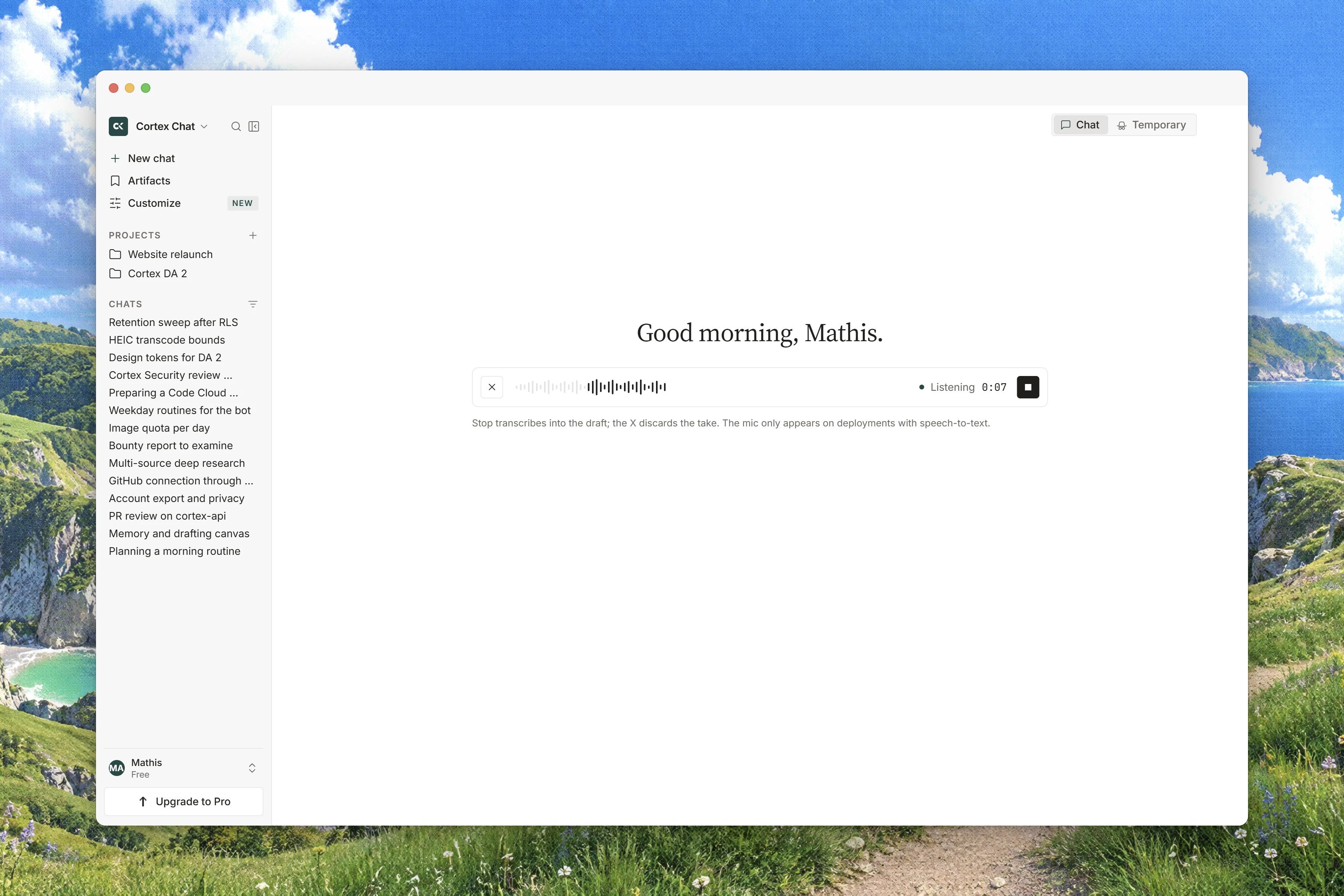
Cortex Chat has two voice controls, and they are independent of each other. **Voice input** in the composer turns speech into text you can edit before sending. **Listen** under a finished answer reads that answer aloud. Both are Chat controls: Cortex Code, Cortex Bot and Cortex Design have no equivalent.
This page covers how each one behaves, what it does and does not send on your behalf, the limits that apply, and what it means when one of the controls is not there at all.
 ## The two controls
| Control | Where it is | What it does |
| --------------- | -------------------- | --------------------------------------------------------------------------------------- |
| **Voice input** | In the composer | Records a short clip, transcribes it, and puts the text in the composer for you to edit |
| **Listen** | On a finished answer | Reads the answer aloud. The tooltip is **Read aloud** |
Each control appears only where the capability behind it is configured. Cortex asks once whether speech-to-text and text-to-speech are available and draws the controls accordingly, so a control you can see is a control that works. Nothing is drawn greyed out, and you will not meet a button that fails when you click it.
## Dictate a message
Click **Voice input** in the composer. If the button is not there, dictation is not configured where you are running Cortex.
The button becomes **Stop recording** while the clip is being captured.
Stop recording. The composer shows **Transcribing…**, then drops the transcript into the message box as ordinary editable text.
Correct anything that was misheard and send the message yourself.
Dictation never sends for you. The transcript lands in the composer and stays there until you press send, which is what makes it safe to dictate a long message and then edit it.
Once the clip has been turned into text, the recording itself is not kept. The text in the composer is what survives, and from that point it is an ordinary message like any other.
## Listen to an answer
On a finished answer, choose **Listen**. If there is no such button, read-aloud is not configured where you are running Cortex.
The button shows **Loading…** while the audio is prepared, then playback starts and the button becomes **Stop**.
**Stop** ends playback. Starting playback on a second answer stops the first one, so only one answer is ever read aloud at a time.
Read-aloud works on the answer as it stands when you press the button, which is why **Listen** belongs to a finished answer rather than one still being written. See [Streaming and reconnects](/chat/streaming) for the phases that come before it.
## Limits
| Limit | Value |
| --------------------------------------- | ---------------------- |
| A single dictated clip | Up to 25 MiB |
| Text sent for read-aloud in one request | Up to 3,000 characters |
| Read-aloud voices | English |
For everything else, a dictated message counts against your message allowance exactly like a typed one, because by the time it is sent it is a typed one. See [Plans and quotas](/getting-started/plans).
## A live voice conversation is not available yet
There is no live, two-way voice mode in Chat today. Talking to Cortex and hearing it answer in the same session is not available, and any path that leads there ends on **Voice is not available on this deployment.** Dictation and **Listen** are the two voice features that work.
Use them together if you want something close to a spoken exchange: dictate the question with **Voice input**, send it, then press **Listen** on the answer. The difference is that each half is a deliberate action rather than an open microphone, and nothing is recorded between them.
## When a control is missing
A missing mic or a missing **Listen** button is not a fault on your side, and there is nothing in your own settings to switch on. Each half is configured where Cortex is running, and either can be available without the other.
| What you see | What it means |
| ---------------------------------------------- | ---------------------------------------------------- |
| No **Voice input** in the composer | Dictation is not configured here |
| No **Listen** on answers | Read-aloud is not configured here |
| **Speech-to-text is not configured.** | Dictation was requested but is not set up |
| **Text-to-speech is not configured.** | Read-aloud was requested but is not set up |
| **Text-to-speech is temporarily unavailable.** | A passing failure. Try the same answer again shortly |
If the mic button is present but your browser never starts recording, the block is usually the browser's own microphone permission for the site rather than Cortex. Allow the microphone in your browser's site settings and try again.
Interface language is a separate matter from the voice controls and is covered in [Language](/getting-started/language).
## Related
* [Streaming and reconnects](/chat/streaming) - an answer has to finish before it can be read aloud.
* [Conversations](/chat/conversations) - the rest of the controls on an answer.
* [Chat troubleshooting](/chat/troubleshooting) - a missing mic or a silent **Listen** button.
* [Getting started troubleshooting](/getting-started/troubleshooting) - what a missing control means in general.
## The two controls
| Control | Where it is | What it does |
| --------------- | -------------------- | --------------------------------------------------------------------------------------- |
| **Voice input** | In the composer | Records a short clip, transcribes it, and puts the text in the composer for you to edit |
| **Listen** | On a finished answer | Reads the answer aloud. The tooltip is **Read aloud** |
Each control appears only where the capability behind it is configured. Cortex asks once whether speech-to-text and text-to-speech are available and draws the controls accordingly, so a control you can see is a control that works. Nothing is drawn greyed out, and you will not meet a button that fails when you click it.
## Dictate a message
Click **Voice input** in the composer. If the button is not there, dictation is not configured where you are running Cortex.
The button becomes **Stop recording** while the clip is being captured.
Stop recording. The composer shows **Transcribing…**, then drops the transcript into the message box as ordinary editable text.
Correct anything that was misheard and send the message yourself.
Dictation never sends for you. The transcript lands in the composer and stays there until you press send, which is what makes it safe to dictate a long message and then edit it.
Once the clip has been turned into text, the recording itself is not kept. The text in the composer is what survives, and from that point it is an ordinary message like any other.
## Listen to an answer
On a finished answer, choose **Listen**. If there is no such button, read-aloud is not configured where you are running Cortex.
The button shows **Loading…** while the audio is prepared, then playback starts and the button becomes **Stop**.
**Stop** ends playback. Starting playback on a second answer stops the first one, so only one answer is ever read aloud at a time.
Read-aloud works on the answer as it stands when you press the button, which is why **Listen** belongs to a finished answer rather than one still being written. See [Streaming and reconnects](/chat/streaming) for the phases that come before it.
## Limits
| Limit | Value |
| --------------------------------------- | ---------------------- |
| A single dictated clip | Up to 25 MiB |
| Text sent for read-aloud in one request | Up to 3,000 characters |
| Read-aloud voices | English |
For everything else, a dictated message counts against your message allowance exactly like a typed one, because by the time it is sent it is a typed one. See [Plans and quotas](/getting-started/plans).
## A live voice conversation is not available yet
There is no live, two-way voice mode in Chat today. Talking to Cortex and hearing it answer in the same session is not available, and any path that leads there ends on **Voice is not available on this deployment.** Dictation and **Listen** are the two voice features that work.
Use them together if you want something close to a spoken exchange: dictate the question with **Voice input**, send it, then press **Listen** on the answer. The difference is that each half is a deliberate action rather than an open microphone, and nothing is recorded between them.
## When a control is missing
A missing mic or a missing **Listen** button is not a fault on your side, and there is nothing in your own settings to switch on. Each half is configured where Cortex is running, and either can be available without the other.
| What you see | What it means |
| ---------------------------------------------- | ---------------------------------------------------- |
| No **Voice input** in the composer | Dictation is not configured here |
| No **Listen** on answers | Read-aloud is not configured here |
| **Speech-to-text is not configured.** | Dictation was requested but is not set up |
| **Text-to-speech is not configured.** | Read-aloud was requested but is not set up |
| **Text-to-speech is temporarily unavailable.** | A passing failure. Try the same answer again shortly |
If the mic button is present but your browser never starts recording, the block is usually the browser's own microphone permission for the site rather than Cortex. Allow the microphone in your browser's site settings and try again.
Interface language is a separate matter from the voice controls and is covered in [Language](/getting-started/language).
## Related
* [Streaming and reconnects](/chat/streaming) - an answer has to finish before it can be read aloud.
* [Conversations](/chat/conversations) - the rest of the controls on an answer.
* [Chat troubleshooting](/chat/troubleshooting) - a missing mic or a silent **Listen** button.
* [Getting started troubleshooting](/getting-started/troubleshooting) - what a missing control means in general.