> ## Documentation Index
> Fetch the complete documentation index at: https://docs.cortex.foundation/llms.txt
> Use this file to discover all available pages before exploring further.
# Code quickstart
> Sign in, connect GitHub, start a Cloud session on a repository, read the timeline and approve your first change.
This quickstart takes you from a signed-out browser to a first approved change, using Cortex Code in the Cloud. It should take under ten minutes of your attention, most of which is reading what the agent proposes.
Everything here happens in the browser, where a session runs in an isolated Cloud guest. If you want a session to work on files on your own machine or on a server you own, that lives in the Cortex desktop app and the Cortex CLI instead; see [Code on desktop](/code/desktop).
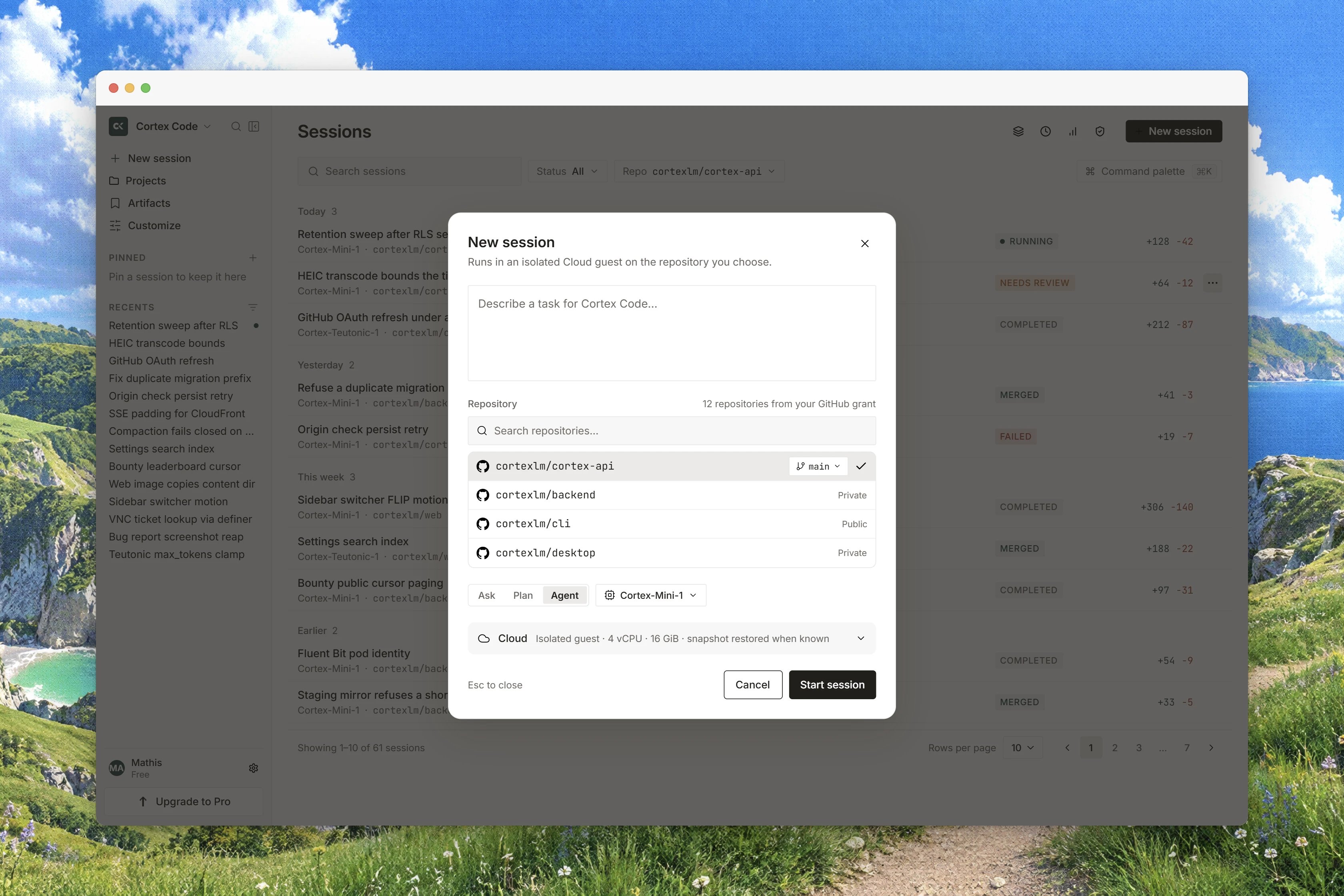 Open the Cortex app at [cortex.foundation](https://cortex.foundation) and sign in with your Cortex account, then switch to Code.
A guest can browse Code Home and type in the prompt box. Pressing **Start session** while signed out opens the sign-in dialog rather than failing, and a deep link into Code shows **This space is reserved** with **Continue in Chat** or **Sign in**.
Press **Connect GitHub** and approve the request on GitHub's own screen. The control appears on the Code integrations page, under **Settings → Integrations**, and straight from the repository picker when it would otherwise show an empty list. There is **no token to paste** anywhere in this step, and no field asking for one.
When you come back, the page reads **GitHub is connected. Taking you back…** and returns you to where you started. If the control reads **Reconnect GitHub**, an earlier connection lapsed: press it and repeat. See [Connect GitHub](/code/github).
Above the prompt box there are two chips. The first is **Choose a repository**. The second is **Branch**: leaving it alone uses the repository's own default branch.
One session works one repository. If your change spans two repositories, that is two sessions. See [Repositories and branches](/code/repositories).
The controls row carries three modes.
| Mode | Its own description in the app |
| --------- | --------------------------------------------------------------------------- |
| **Ask** | **Questions and exploration. Nothing is edited until you switch to Agent.** |
| **Plan** | **A mermaid plan you can review. No edits until you switch to Agent.** |
| **Agent** | **Full catalog: read, edit, run, and open a pull request.** |
For a first run that ends in a real change, pick **Agent**. Pick **Plan** if you would rather read the approach first, then send a second turn in **Agent** to carry it out. The mode you pick applies to the turn you are about to send, and you can change it on every follow-up.
Write the task the way you would write it for a colleague who has not seen the code yet. A good first ask:
```text theme={null}
Add a /healthz endpoint that returns 200 with the build version, and cover it with a test.
```
Press **Start session**. Cortex creates the session, opens it, and the first turn attaches an isolated Cloud guest prepared from the repository you chose. The first session on a repository spends time installing what the repository declares, so it is slower than the next one; a saved image removes that wait later. See [Environments and images](/code/environments).
The transcript shows your ask as the **Task** line, then a row per piece of work with a duration: **Read**, **Edited**, **Ran** and **Worked**. Before anything has run it says **Nothing has run in this session yet. Describe a task below and Cortex will start work.**
Long finished output is folded to keep the column readable. The hint says it plainly: **Long finished results are folded. Press Ctrl+O to expand every row.** On a Mac, Ctrl+O or Command+O both work.
If the agent wants to run a command that needs your decision, a card appears above the transcript with **Allow once**, **Always allow** and **Deny**. **Always allow** applies to that tool in this session only. It is not an account setting, and it never covers a file write.
Open the **Changes** tab in the output pane on the right. Each file the agent touched is listed with its state: **Queued**, **Writing**, **Pending**, then **Written**.
Press **Approve** on a file you have read, or **Approve all** for the batch. Press **Reject** to refuse one, and where the surface offers it, say why under **Why reject this write** so the agent reads your reason. Until a file is approved, the tree is not written.
In **Ask** or **Plan** this pane says so instead: **Ask and Plan do not change files, so there is nothing to review here.**
Open the **Git** tab. Once the session has a branch it offers **Open pull request**; before that it reads **No branch yet** or **No pull request**. Pushes are limited to Cortex branches, so a session cannot push over your default branch.
If the repository has pull-request review enabled, the review arrives on the pull request itself. See [Pull-request review](/code/security).
## Read the change before you approve it
**Approve** is the point of no return. There is no undo, no checkpoint and no revert anywhere in Code, and approving a file cannot be taken back from inside the session. While a write is still **Pending** you can **Reject** it; afterwards the repository is the only place to change your mind.
This is also why the two gates use different words. The **Allow once** / **Always allow** / **Deny** card decides whether a command may run. The **Approve** in **Changes** decides whether a file is written. A session grant on the first never grants the second. See [Permissions and approvals](/code/approvals).
## What to try next
| Goal | Do this |
| ----------------------------------------- | ---------------------------------------------------------------------------------------------------- |
| Understand an unfamiliar area | An **Ask** turn: *Explain how requests are authenticated in this service.* |
| See the approach before anything changes | A **Plan** turn, then read the **Plan** tab and send a follow-up in **Agent** |
| Keep the session going | Type in the follow-up box at the bottom of the transcript; Enter sends, Shift+Enter adds a newline |
| Stop a turn that is heading the wrong way | Press the square in the send disc. The session reads **Stopped** and offers **Continue** |
| Skip the install next time | Save the environment as an image from the session's **Runtime** tab |
| Work from a terminal | Install the Cortex CLI and drive the same sessions from there; see [Code in the terminal](/code/cli) |
**This PC** and **SSH** are not browser options. To run a session against a folder on your own machine or a registered remote host, use the Cortex desktop app or the Cortex CLI.
## Related
* [Code sessions](/code/sessions) for the board, the transcript and follow-ups.
* [Ask, Plan, Agent](/code/interactions) for what each mode may reach.
* [Permissions and approvals](/code/approvals) for both gates in full.
* [Changes and diffs](/code/changes) for reading a proposed diff.
* [Code troubleshooting](/code/troubleshooting) when a session will not start.
Open the Cortex app at [cortex.foundation](https://cortex.foundation) and sign in with your Cortex account, then switch to Code.
A guest can browse Code Home and type in the prompt box. Pressing **Start session** while signed out opens the sign-in dialog rather than failing, and a deep link into Code shows **This space is reserved** with **Continue in Chat** or **Sign in**.
Press **Connect GitHub** and approve the request on GitHub's own screen. The control appears on the Code integrations page, under **Settings → Integrations**, and straight from the repository picker when it would otherwise show an empty list. There is **no token to paste** anywhere in this step, and no field asking for one.
When you come back, the page reads **GitHub is connected. Taking you back…** and returns you to where you started. If the control reads **Reconnect GitHub**, an earlier connection lapsed: press it and repeat. See [Connect GitHub](/code/github).
Above the prompt box there are two chips. The first is **Choose a repository**. The second is **Branch**: leaving it alone uses the repository's own default branch.
One session works one repository. If your change spans two repositories, that is two sessions. See [Repositories and branches](/code/repositories).
The controls row carries three modes.
| Mode | Its own description in the app |
| --------- | --------------------------------------------------------------------------- |
| **Ask** | **Questions and exploration. Nothing is edited until you switch to Agent.** |
| **Plan** | **A mermaid plan you can review. No edits until you switch to Agent.** |
| **Agent** | **Full catalog: read, edit, run, and open a pull request.** |
For a first run that ends in a real change, pick **Agent**. Pick **Plan** if you would rather read the approach first, then send a second turn in **Agent** to carry it out. The mode you pick applies to the turn you are about to send, and you can change it on every follow-up.
Write the task the way you would write it for a colleague who has not seen the code yet. A good first ask:
```text theme={null}
Add a /healthz endpoint that returns 200 with the build version, and cover it with a test.
```
Press **Start session**. Cortex creates the session, opens it, and the first turn attaches an isolated Cloud guest prepared from the repository you chose. The first session on a repository spends time installing what the repository declares, so it is slower than the next one; a saved image removes that wait later. See [Environments and images](/code/environments).
The transcript shows your ask as the **Task** line, then a row per piece of work with a duration: **Read**, **Edited**, **Ran** and **Worked**. Before anything has run it says **Nothing has run in this session yet. Describe a task below and Cortex will start work.**
Long finished output is folded to keep the column readable. The hint says it plainly: **Long finished results are folded. Press Ctrl+O to expand every row.** On a Mac, Ctrl+O or Command+O both work.
If the agent wants to run a command that needs your decision, a card appears above the transcript with **Allow once**, **Always allow** and **Deny**. **Always allow** applies to that tool in this session only. It is not an account setting, and it never covers a file write.
Open the **Changes** tab in the output pane on the right. Each file the agent touched is listed with its state: **Queued**, **Writing**, **Pending**, then **Written**.
Press **Approve** on a file you have read, or **Approve all** for the batch. Press **Reject** to refuse one, and where the surface offers it, say why under **Why reject this write** so the agent reads your reason. Until a file is approved, the tree is not written.
In **Ask** or **Plan** this pane says so instead: **Ask and Plan do not change files, so there is nothing to review here.**
Open the **Git** tab. Once the session has a branch it offers **Open pull request**; before that it reads **No branch yet** or **No pull request**. Pushes are limited to Cortex branches, so a session cannot push over your default branch.
If the repository has pull-request review enabled, the review arrives on the pull request itself. See [Pull-request review](/code/security).
## Read the change before you approve it
**Approve** is the point of no return. There is no undo, no checkpoint and no revert anywhere in Code, and approving a file cannot be taken back from inside the session. While a write is still **Pending** you can **Reject** it; afterwards the repository is the only place to change your mind.
This is also why the two gates use different words. The **Allow once** / **Always allow** / **Deny** card decides whether a command may run. The **Approve** in **Changes** decides whether a file is written. A session grant on the first never grants the second. See [Permissions and approvals](/code/approvals).
## What to try next
| Goal | Do this |
| ----------------------------------------- | ---------------------------------------------------------------------------------------------------- |
| Understand an unfamiliar area | An **Ask** turn: *Explain how requests are authenticated in this service.* |
| See the approach before anything changes | A **Plan** turn, then read the **Plan** tab and send a follow-up in **Agent** |
| Keep the session going | Type in the follow-up box at the bottom of the transcript; Enter sends, Shift+Enter adds a newline |
| Stop a turn that is heading the wrong way | Press the square in the send disc. The session reads **Stopped** and offers **Continue** |
| Skip the install next time | Save the environment as an image from the session's **Runtime** tab |
| Work from a terminal | Install the Cortex CLI and drive the same sessions from there; see [Code in the terminal](/code/cli) |
**This PC** and **SSH** are not browser options. To run a session against a folder on your own machine or a registered remote host, use the Cortex desktop app or the Cortex CLI.
## Related
* [Code sessions](/code/sessions) for the board, the transcript and follow-ups.
* [Ask, Plan, Agent](/code/interactions) for what each mode may reach.
* [Permissions and approvals](/code/approvals) for both gates in full.
* [Changes and diffs](/code/changes) for reading a proposed diff.
* [Code troubleshooting](/code/troubleshooting) when a session will not start.