

cortex.foundation. The same sign-in opens Cortex Chat, Cortex Code, Cortex Bot, Cortex Security, the desktop apps and Cortex CLI. Chat is the only surface that works before you sign in: you can open it, ask a question and read the answer without an account at all.
This page covers the difference between a guest and a signed-in member, the sign-in methods as they appear on screen, what changes the moment you sign in, how sessions behave across devices, and the two gates that stand in front of Code and Bot during the beta.
Guest and member
A guest is anyone using Chat before signing in. A member is a signed-in account.
One rule explains every row: a guest cannot create anything it could not come back to revoke. A guest session cannot be signed back into later to withdraw a grant, so Cortex never lets it make one. Where a guest meets a wall, the product says the capability needs an account and offers to sign in rather than hiding the control.
The guest allowance
A banner above the composer counts what is left, in the form{left} of {limit} free messages left. The guest ceiling is 100 messages today and 500 messages this month. When a window is used up, the banner becomes Sign in to continue.
Guest conversations live in the browser session. Sign in before you close the tab if you want to keep them. The guest allowance belongs to that browser session and ends at sign-in: it does not carry over, and the Free plan’s own windows start fresh on the account.
Ways to sign in
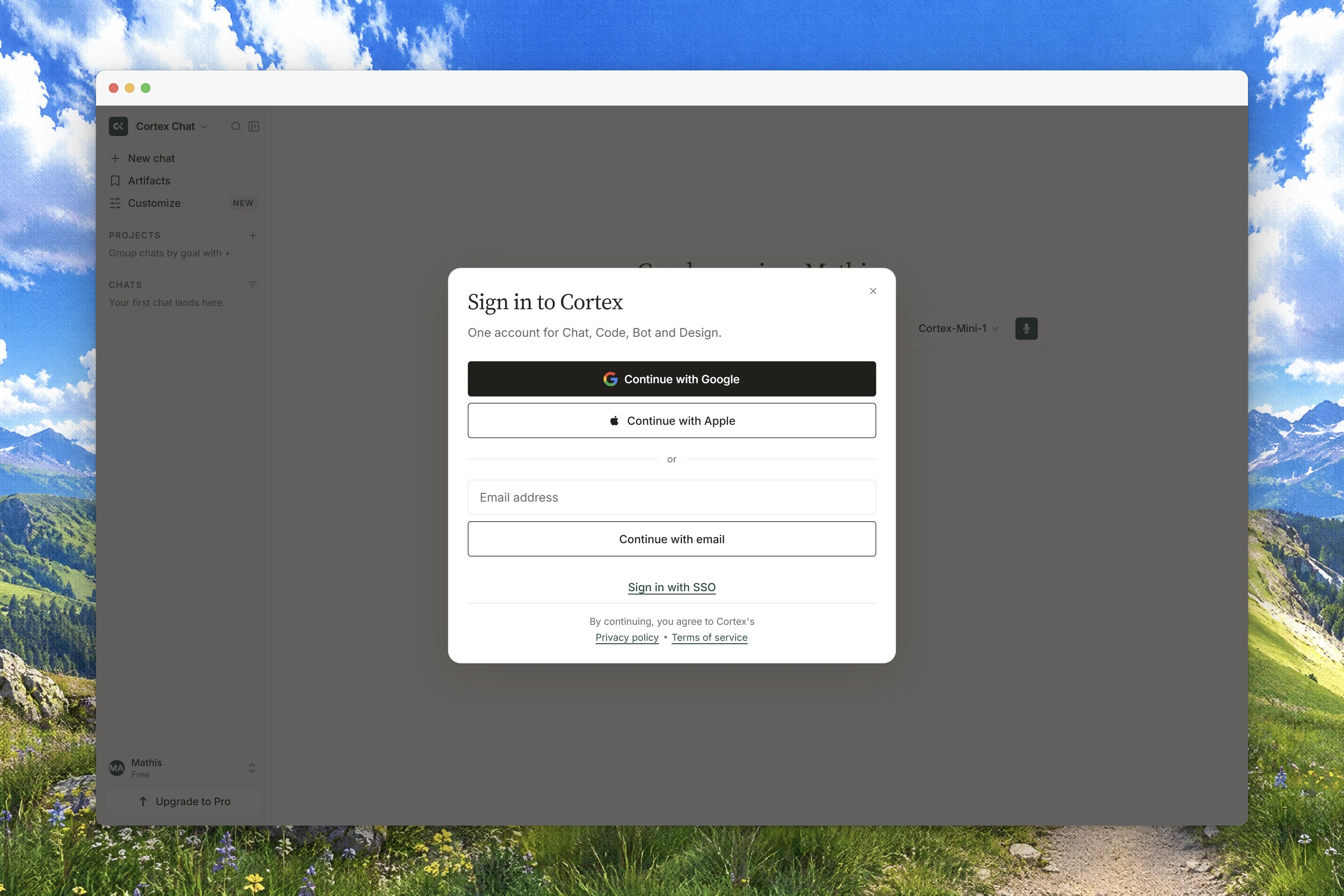
Sign-in happens in a dialog oncortex.foundation, and the dialog says so: Sign-in happens here, on cortex.foundation — never on another domain. It is titled Sign in, and it explains what an account buys you with Your chats, projects and Bot routines follow you across devices. Nothing is lost when you close the tab.
Interface preview
1
Open the dialog
Choose Sign in to save your work in the sidebar footer, or Sign in on any public page.
2
Pick a method
Continue with Google, Continue with Apple, Continue with email, or Single sign-on (SSO) for organisations.
3
For email, enter the code
Type your address in
Your email address. Cortex emails a code and the dialog says We emailed a code to {email}. It expires quickly. Enter it under Code. Retry only ever re-sends on a click, never on a timer, because retrying sends another email.4
For SSO, enter your work email
Under Sign in with SSO, enter your work email and choose
Continue. You are handed to your organisation’s identity provider and returned to Cortex.5
Let it close itself
The dialog shows
You're signed in. and Opening your workspace… This chat is kept., then closes on its own after about a second. Press Enter or Esc to close it now.Privacy policy and Terms of service.
The sign-in dialog has no second-factor field. If your organisation requires a second factor, it runs during the identity step rather than in this dialog. In Cortex itself, two-factor is a confirmation for export and deletion. See Two-factor authentication.
cortex login, which opens the same browser dialog. See CLI sign-in.
What signing in changes on screen
Signing in does not navigate. The transcript you were reading stays exactly where it was. The shell picks up the new account, the sidebar footer switches fromGuest and Sign in to save your work to your account row, and the notification and quota panels restart their reads for the new identity. Signing in as a different account resets those panels to their loading state rather than briefly showing the previous account’s rows.
Your account details then live in Settings → General: Email (The address you sign in with., read-only) and Display name (How Cortex refers to you., up to 120 characters, saved with Saving… then Saved). A guest sees You're browsing as a guest. and Sign in to manage your account in place of those two rows.
Sessions and devices
A signed-in account follows you across devices: the same chats, projects and Bot routines are there when you open Cortex somewhere else. Nothing has to be transferred by hand. When a session ends on its own, Cortex saysPlease sign in again with Your session has expired. Signing in again picks up where you left off. Signing in returns you to what you were doing.
Settings has no device list and no remote sign-out today. Ending every session at once is drawn as Lockdown mode under Settings → Data & privacy → Account security, but the row reads Lockdown is not available on this account yet. Login alerts, on the same row group, are drawn on and disabled with Login alerts are not available on this account yet.
Cortex is per account. There are no teams, no shared workspaces and no invitations to send. The role and directory rows you can see under Settings → Integrations describe an organisation you cannot create here. See Sharing.
The beta gates for Code and Bot
Cortex Code and Cortex Bot are member surfaces, and during the beta they are also invitation-only. You meet one of two dialogs, in this order.
Neither dialog can be dismissed: there is no close button, Escape does nothing and clicking outside does nothing. Neither is a redirect either. The address bar keeps the URL and the public product page stays visible behind the dialog. Cortex Chat is never gated.
When sign-in does not work
Related
- Two-factor authentication - the confirmation that protects export and deletion.
- Plans and quotas - the guest allowance, and what each plan lifts.
- Settings - every tab, and where your account controls live.
- Data and privacy - export, deletion, cookies and memory.
- CLI sign-in - the terminal side of the same account.
- Troubleshooting - cross-product symptoms and what they mean.