

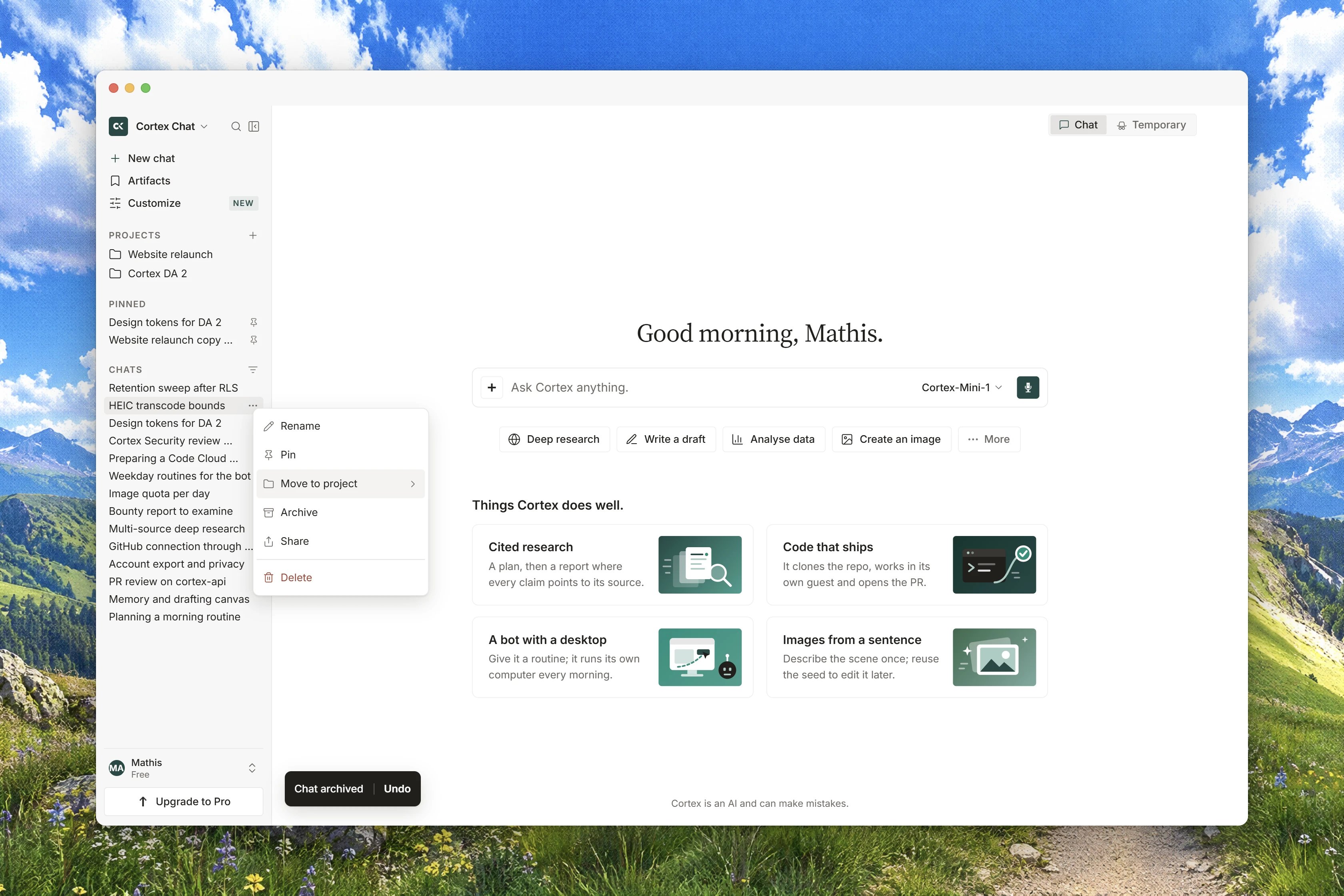
Interface preview
What you need
Get a first answer
1
Open Cortex
Go to cortex.foundation. Chat is the surface you land on, and it is the one application that is never gated. A banner above the composer counts the free messages left in the guest allowance, which is 100 a day and 500 over thirty days.
2
Send a message
Type in the composer and press Enter. The answer streams as it is written. Press Esc to stop a response that is still running, and Shift with Enter for a new line instead of sending.
3
Look around the shell
The sidebar holds New chat, a WORKSPACE section (Planning, Projects, Library, Plugins, Artifacts, Customize), a PINNED section and RECENTS. Switch product at the top moves between Chat, Code and Bot without reloading anything. In Chat,
Ctrl with K (⌘ K on a Mac) opens Search, and Ctrl with / opens the full Keyboard shortcuts sheet.A Two-minute orientation card offers Start tour, which walks you through the product menu, the command menu and Settings. Dismiss onboarding hides it for good.4
Sign in to keep your work
Choose Sign in to save your work in the sidebar footer, or Sign in on any public page. The dialog runs on
cortex.foundation and says so. Signing in does not navigate away: the conversation on screen is kept, the sidebar swaps the Guest row for your account, and the dialog closes on its own about a second after it reads You’re signed in.The available methods, and what to do when a sign-in banner reports a problem, are on Accounts and sign-in.5
Open a second application
Use Switch product in the sidebar to pick Cortex Code or Cortex Bot. If you are still a guest, a dialog headed This space is reserved offers Sign in or Continue in Chat. If you are signed in but not yet invited, a closed-beta dialog offers Continue in Chat only. Neither dialog can be dismissed and neither redirects, so the address bar keeps the URL you asked for.
Guest conversations live in the browser session. Sign in before you close the tab if you want to keep the one you just started. Guests also have no projects, no Library, no memory and no uploads, because a guest session could never come back to revoke something it created.
Set the model and the thinking level
Chat picks a default model for new chats and lets you switch at any time from the composer. The current public models are Cortex 1 Mini, Cortex Teutonic-1 and, for pictures, Cortex-Image-1. All three are previews. To change the default rather than the current chat, open Settings from the sidebar footer and stay on Models. Default model applies to new chats, and Default thinking level (Low, Medium, High) sets how much time Cortex spends reasoning before it answers. Every published model is available from the Free plan up, so the picker will not lock a row on you. See Models.Install the desktop app or the CLI
The browser covers Chat, and the cloud runtimes behind Code and Bot. A local host, meaning your own machine or a server you own, exists only on the desktop app and the command line. That is a deliberate split, not a missing browser feature. Start from Ways to run Cortex for the desktop app, or Install the CLI for the terminal.Then pick a surface
Chat quickstart
Create a project with standing instructions, add files to Library, and run a research task.
Code quickstart
Connect a repository and start your first session with approvals turned on.
Bot quickstart
Create a bot, open its computer, and watch it work while it asks before consequential steps.
CLI quickstart
Sign in from the terminal and run a session in a checkout you already have.
Design quickstart
Install the Cortex Design desktop app and make your first canvas.
Security quickstart
Put review on a repository and read the check run it writes on a pull request.
Frequently asked
Do I need an account to try Cortex?
Do I need an account to try Cortex?
No. Chat works as a guest with 100 messages a day and 500 over thirty days. The banner above the composer shows how many are left. Signing in moves you to the Free plan, whose windows start fresh on the account: an unused guest allowance does not carry over.
Why does Cortex Code say the space is reserved?
Why does Cortex Code say the space is reserved?
You are not signed in. Code and Bot are member surfaces. Choose Sign in, or Continue in Chat.
I am signed in and Cortex Code still will not open.
I am signed in and Cortex Code still will not open.
Code and Bot are in closed beta, so a signed-in account also has to be invited. The dialog offers Continue in Chat only. Ask for an invitation, and use Chat in the meantime.
Can I change plan from inside the app?
Can I change plan from inside the app?
Settings then Plan & billing lists the plans and marks the one you are on, but checkout is not available yet on this deployment: expect a hold badge on the action rather than a payment form. Plans and quotas explains what each plan includes.
Is there a public inference API?
Is there a public inference API?
Not yet. There is no public model-inference API, no endpoints and no programmatic keys to document. See Platform API.