

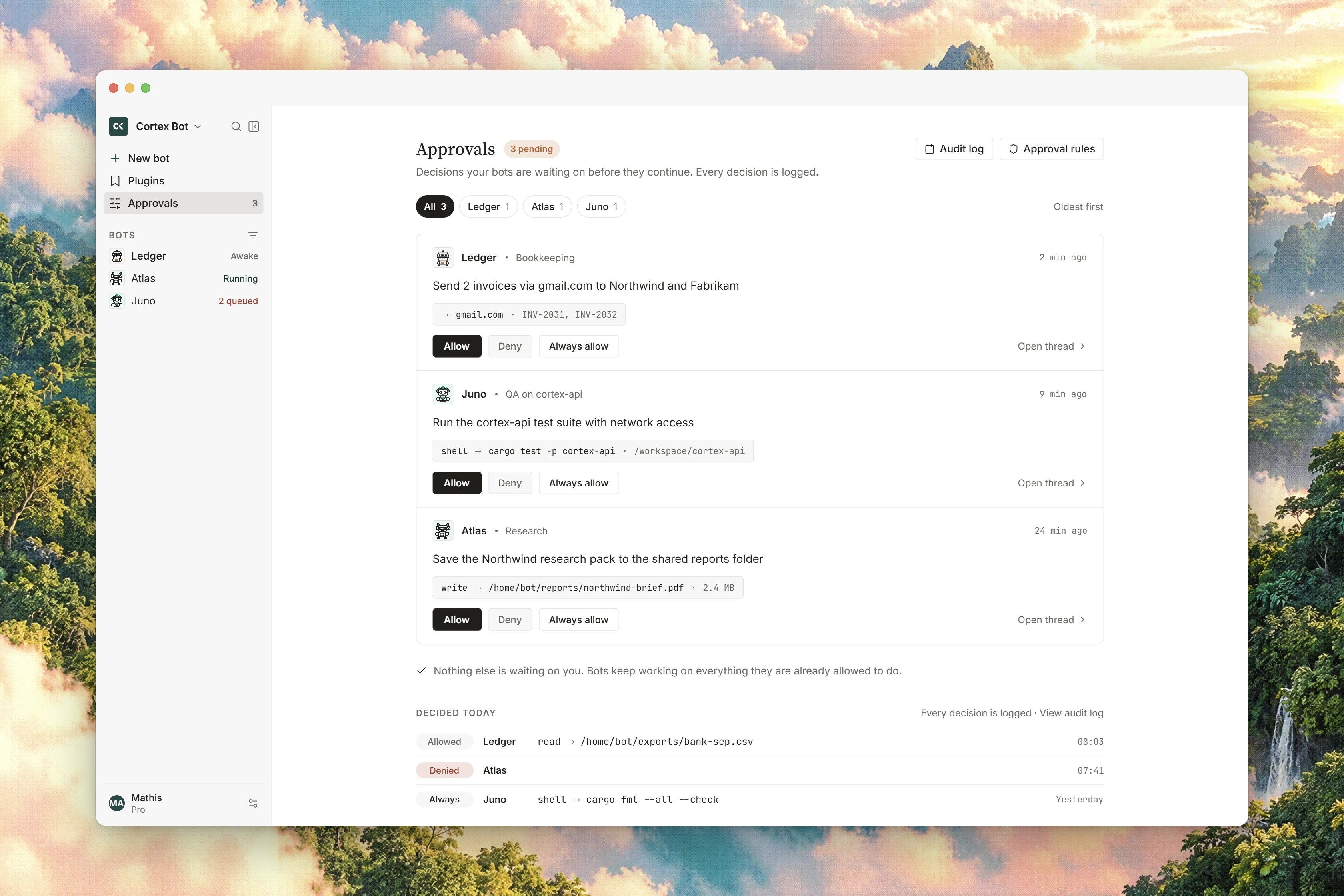
Interface preview
The three choices
One sentence from the product carries the whole model:Allow runs the parked tool. Deny does not. Always writes a rule.
Allow is not “continue” and it is not a preview. It executes the exact call you are looking at. Deny never writes a rule, so the same tool will ask again next time, and Allow does not stop the asking either: only Always changes what happens next. The widget states its own scope,
Always grants this tool for this Bot until its approval rule is removed., and the Approvals page repeats it as Always skips Ask the next time this bot uses that tool.
Read before you choose
1
Read the tool name and the reason
The widget asks
Allow {tool}? and shows the bot’s reason underneath.2
Read the arguments
The parked arguments are shown in full: the command, the path, the text it wants to type. This is the one place they are displayed, so this is where you check them.
3
Look at the computer if it helps
The live desktop shows the state the bot is actually in. See Computer.
4
Choose
Allow, Deny or Always. Nothing times out into a silent yes, and a parked tool waits as long as it takes.
Which tools always ask
Eleven tools always ask before they run:shell, write, edit, code_agent, browser, grounded_click, type, hotkey, drag, open_app and switch_app.
Twenty never ask: read, screenshot, scroll, wait, save_note, web_search, web_fetch, ask_user, secret_request, send_to_user, notify, update_memory, skill, routine, task, send_to_agent, create_agent, create_channel, read_artifact and grep_artifact.
A tool on neither list is allowed to run. The two lists are the shipped policy rather than a heuristic, and they read as one sentence: anything that changes a file, runs a command, or moves the mouse or keyboard asks first, while looking, waiting, remembering and talking do not. The full catalog with an Always asks column is on Bot tools.
Connected-app tools are handled on their own terms. A mutating action asks, a read-only call passes, and an always-allow rule has to name that exact tool: a rule for a whole app or a whole category is refused, so an app you added for one harmless action cannot quietly inherit an auto-run you never saw. Turning an app on for a bot never offers always-allow in the first place, which the form states as Always-allow is not offered. Ask each time or leave it off.
The automatic tool policy
Above those lists sits a policy that is consulted before every tool call, one call at a time, and re-read before every round of the turn. A rule you write while the bot is mid-turn therefore applies to its next call rather than its next task. Each call gets one of three verdicts, and each verdict carries a readable reason that reaches you and the bot.
Rules come from three tiers, strictest first.
Within a tier the most specific match wins: a rule about one tool beats a rule about a connector, which beats a rule about a category. An administrator’s deny or required approval cannot be lifted by an owner rule, so if a deployment has decided a bot may not run shell commands, no Always of yours will change that.
The administrator tier is written by Cortex today. There is no customer-facing screen for it, so if you need a deployment-wide ceiling, ask Cortex rather than looking for a setting.
When the policy refuses instead of asking
The policy fails closed by design. These are the cases where a call is refused rather than parked:- A tool the bot never offered is denied outright. A name that was not declared is not a tool.
- A rule shape this build does not understand matches nothing, rather than matching everything.
- If your rules cannot be read at all, the round is refused rather than run on a stale copy.
- If the decision cannot be recorded, the call is refused:
The tool policy could not record this call, so it was refused. - A rule’s reason that looks like a credential is refused when you write it.
Where pending approvals show up
In the conversation
The widget appears in the bot’s thread, in the order the turn reached it.
Inbox
A row per bot that needs you, with Approve, Edit first and Deny on the spot.
Parked tools from every bot land here with Allow, Deny, and Always.
Beside that list, the Always allow rail lists the rules you have written. The rail is read only: it shows you what is in force, and it is not where a rule is removed. A rail that could not load says so, with Could not load Always rules. or Some Always rules could not be loaded., and that is never the same thing as having no rules.
In the sidebar, a bot holding a parked tool shows a small amber marker where its status word would be, labelled Pending approval. The bot command palette lists the same items under Waiting on you, but selecting one takes you to it rather than deciding it.
When a request cannot be settled
Occasionally a row cannot be acted on, and the surface saysThis request cannot be settled from here. rather than guessing. That happens when the request has no message to settle against, and the same caution applies elsewhere: a decision is offered only when there is a real pending call behind it and a reason to show you. If a decision fails to send you are told plainly with The decision could not be sent., and the tool stays parked.
Related
- Bot tools - the whole catalog, with what asks and what does not.
- Talking to a bot - where the widget appears and what else blocks a turn.
- Inbox - working through everything that needs you.
- Connected apps and secrets - per-bot app assignment and the vault.
- Bot troubleshooting - parked steps that will not clear.