

Start the computer
A bot’s computer is created with the bot, but it is not kept running for nothing. The rail tells you which state it is in and offers exactly one sensible action.1
Open the Computer tab
Open a bot you own and choose Computer. An open bot has Messages, Computer, Videos and VNC tabs.
2
Start or wake it
If the rail says No computer yet, with the hint
Start a Cloud computer to open a live desktop., choose Start computer. If it says Computer is asleep, with Wake it to resume the desktop., choose Wake the computer or Resume.3
Wait for the desktop
You will see
Starting the computer… while the machine comes up, then Connecting to the desktop stream… for a few seconds while the view is joined. The rail then reads Live.4
Watch it work
The live screen shows what the bot sees and does: pages it opens, controls it clicks, files it edits.
Could not wake the computer in its activity, and Wake the computer on the rail is then your move.
What the rail shows
Live and Off are the two words for the stream itself. Between them sit the honest intermediate states, which is the point of the rail: it never paints a fake desktop.
Screenshots are the fallback and never the normal mode. If you are looking at stills, the live stream could not be joined on that view.
Take control
The desktop has one writer at a time. Take control hands the mouse and keyboard to you and the rail confirmsYou have control. Hand back returns them to the bot. While the bot holds them you see {name} is still working., and handing control away is acknowledged with You handed back control.
Taking control is the right move when the bot is stuck on something only you can do, such as a screen it should not be clicking through on its own. For a password, a one-time code or a captcha, do not type it into the thread: the bot raises Cortex needs you and the value you enter there is delivered to the computer rather than posted as a message.
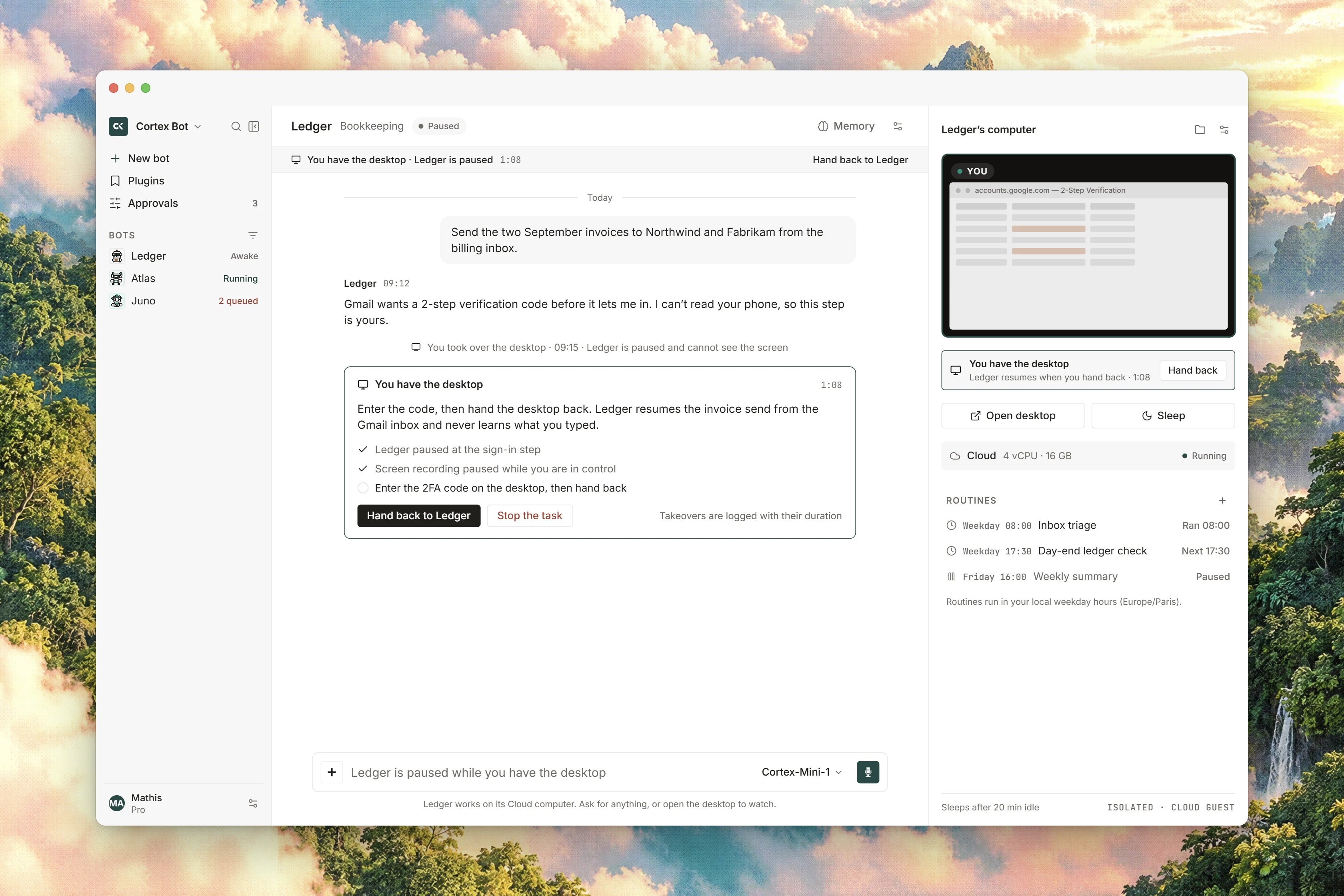
Interface preview
Record a session
The Videos tab is the bot’s Recordings list. A recording captures the full screen, the path the pointer took and zooms on its clicks, which makes it the clearest way to review what a routine did overnight.1
Check the computer is awake
Recording needs a running computer:
Recording needs the computer to be awake. Only the bot’s owner can record it.2
Start
On Videos, choose Record. The tab shows
Recording… while it runs.3
Stop and play
Choose Stop recording. The finished recording is listed with its length and size and a Play action.
Encoding failed rather than a broken file.
The separate Record / replay and Teach a task recorders turn a demonstration into a reusable skill instead of a video. See Teach from a demonstration.
Sleep, hibernation and recreate
An idle computer hibernates on its own to save resources, and Hibernation is a toggle on the bot’s settings. There is nothing to clean up after a job: leave the bot alone and its computer puts itself away, then wakes on the next turn that needs it.
What the computer can reach
A bot’s computer reaches the network through an allow list, not the open internet. The rule is stated on the bot’s own Egress and activity panel:Hosts on the allow list may be reached. Everything else is refused, and the blocked ranges are refused before this list is read. With nothing on the list the bot reaches nothing at all, so adding the first domain is what turns egress on.
Some addresses can never be allowed whatever the list says: instance metadata, loopback and the private network are refused first, and a hostname that resolves to one of those is refused as well. The panel also carries an Activity feed of the bot’s own events, such as Asked you a question, Waiting for your approval, Could not wake the computer and A recording finished. It is an event feed rather than a request log, so it does not record destinations.
Editing that allow list is not available yet. The list you see is what the deployment holds, and adding or removing a domain from this panel does not persist. Browsing the computer’s workspace files from the rail is not available yet either.
One computer, one bot
Each bot has exactly one computer, and it is always the cloud computer Cortex runs for it. Its disk, its desktop and its recordings belong to that bot alone, so one bot cannot see another’s screen or files, and a bot’s desktop cannot see a Cortex Code workspace. Choosing a different machine to run work on, your own computer or a host you keep, is a Cortex Code control rather than a Bot one. See Machines and SSH hosts.Related
- Bot tools - the desktop verbs the bot uses on this screen.
- Approvals and tool policy - why a click or a command stops and asks.
- Teach from a demonstration - turn what you do on this desktop into a skill.
- Routines - scheduled work that wakes this computer.
- Bot troubleshooting - when the desktop will not start or the stream will not connect.