

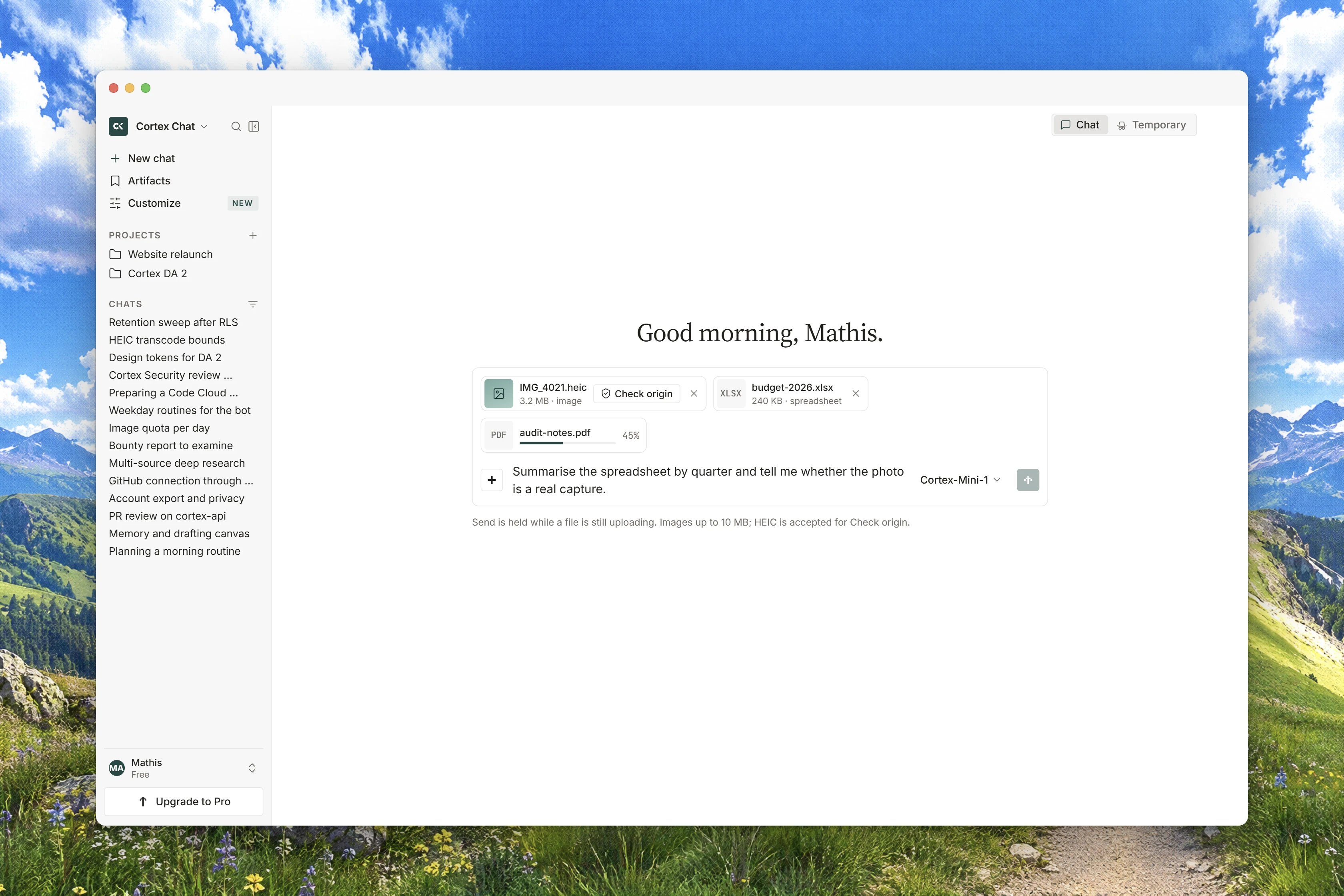
Interface preview
Attach a file
1
Open the attach menu
Click Attach a file in the composer. The menu offers a local file, From your Library, and Cloud drives. A drive you have not connected shows Connect instead of a file list.
2
Watch the chip
The file appears as a chip above the composer. It reads Uploading… with a percentage while the transfer runs, then settles to the file name. The chip states the ceiling: 10 MB max.
3
Remove it if you change your mind
Remove with the file name drops the attachment. The same button cancels an upload that is still running.
4
Send the message
Write your question and send. The file is in Library afterwards, so you can attach it again later without uploading it a second time.
What Chat accepts
A file type outside this list is refused as an unsupported media type. See Unsupported media type.
Photos in the
.heic and .heif formats are accepted for a provenance check but not as chat images. The message says so: HEIC photos can be checked for origin. Use Check origin, or convert to JPEG or PNG. See Check origin.
The size ceiling is 10 MB
The composer applies a single limit of 10 MB per file, and it applies to everyone. The check happens in your browser before the upload starts, so an oversized file is refused straight away instead of wasting a long transfer. The media rail refuses the same way, with That file is larger than the attach limit. If a file is too large, the fix is to split it, export a smaller range, or attach the relevant part as text.Uploading requires an account. Signed out, you get a working conversation but no uploads. If an upload is refused on your plan before the size check even runs, that is an entitlement refusal rather than a size problem, and Entitlement required explains what to do.
What Cortex reads out of a file
Uploading is only half the job. Cortex then tries to read text out of what you sent, and the chip says Reading with the file name while that happens.
An unreadable file fails plainly: That file is encrypted or unreadable. Cortex did not extract it. If that happens on a document you know is fine, an export to plain text or a re-save from the original application usually fixes it.
When an answer quotes something from a file, the citation names the file and the place inside it, so a claim can be checked against the source. The shape is the file name followed by a locator, for example
report.pdf · p.12 or forecast.xlsx · Sheet 1.
Images
You can attach an image, and the composer will upload it like anything else. What a model does with it is another matter: neither model published in Chat today advertises image understanding, so do not build a question around Cortex reading what is inside a picture. See Models and thinking. There is one thing a picture is definitely good for. If your question is whether an image was generated or edited rather than what it shows, run it through Check origin, which is built for exactly that and accepts the widest set of photo formats.Where uploads land
Every file you attach is stored in Library, not only inside the conversation. Two consequences are worth knowing:- Deleting a chat does not delete the files you attached to it. They stay in Library until you remove them there.
- A file already in Library can be attached to any later chat through From your Library, with no second upload.
When an upload will not work
Upload failed
Upload failed
The transfer did not complete. The chip turns to an error state and keeps the file name. Remove the chip and attach the file again; if it fails repeatedly on a large file, check your connection before blaming the file.
The file is over 10 MB
The file is over 10 MB
It is refused before the upload starts, so nothing was transferred. Reduce or split the file.
Cortex did not extract it
Cortex did not extract it
The file uploaded but could not be read, which is usually password protection or corruption. The file is still in Library; the text simply did not reach the model.
Related
- Library - where every upload and generated file is kept.
- Check origin - test whether a photo was generated or edited.
- Models and thinking - what the current models do and do not handle.
- How Chat works - how an attachment becomes part of a turn.
- Chat troubleshooting - upload and extraction messages in context.