

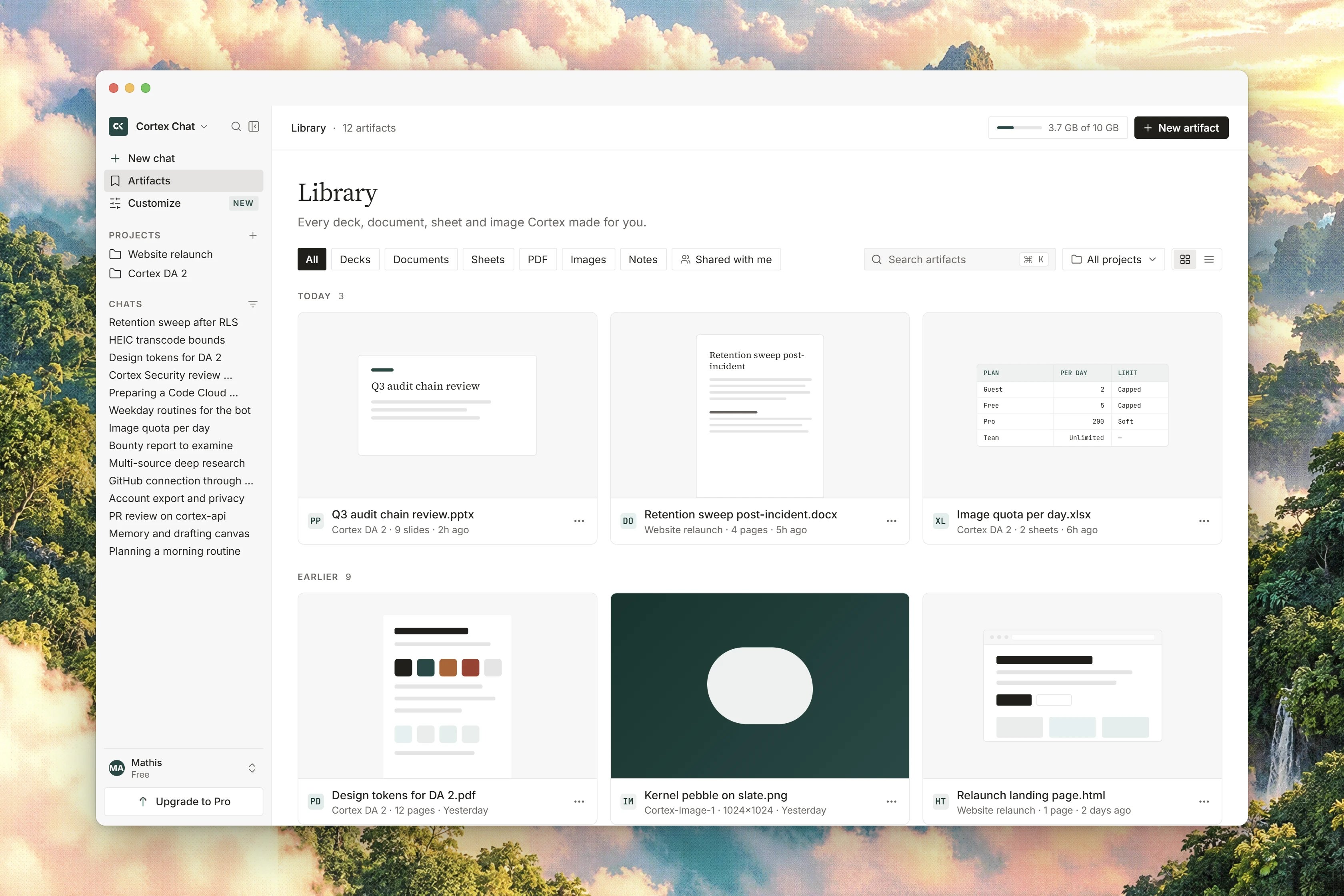
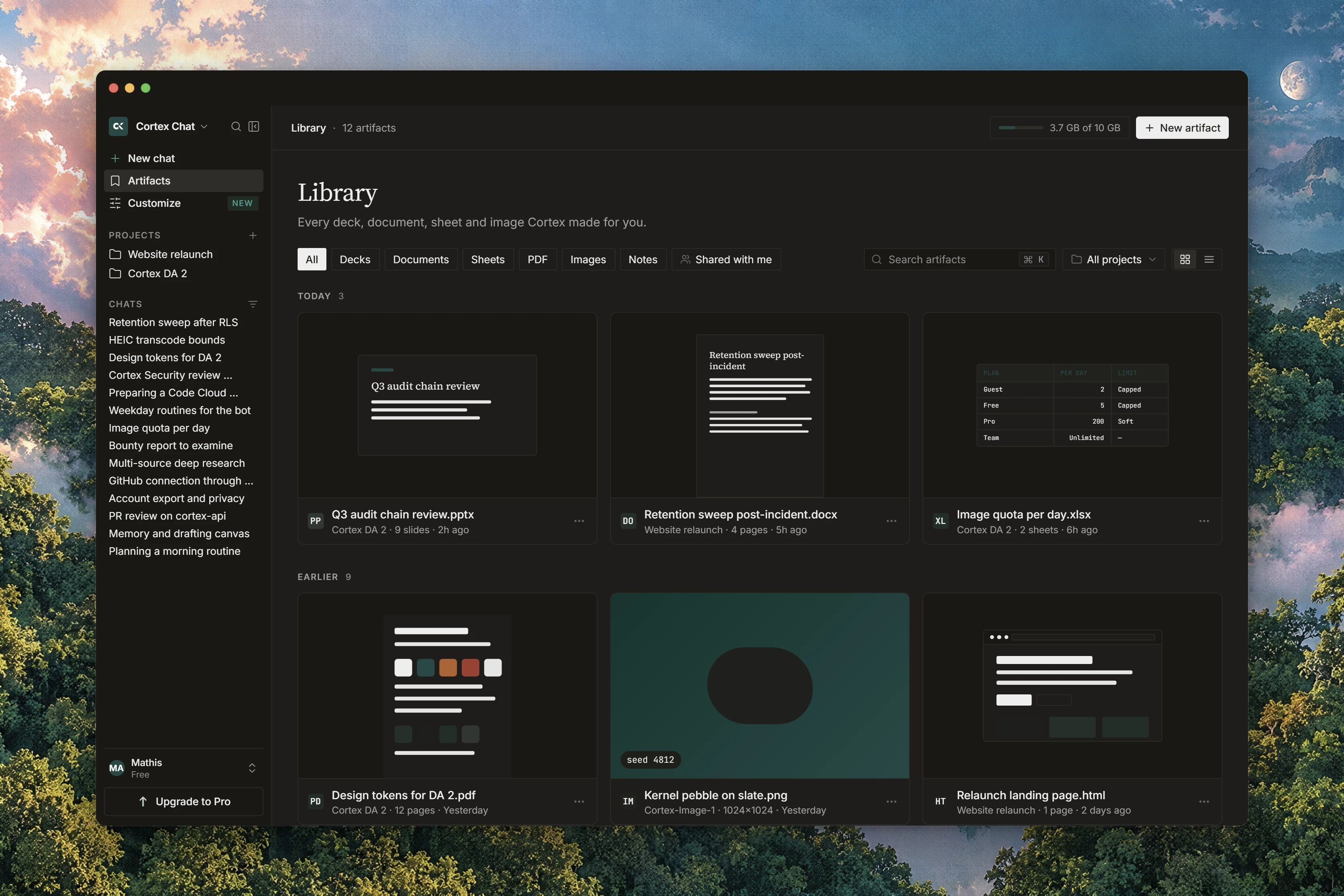
Interface preview
How files arrive
Notes are the fifth route in. Select text in an answer and Chat offers Start writing and Save to Library; a saved note is filed as a Document. Saving a note does not spend your per-upload allowance, and a guest may save one. A selection that crosses a code fence is ignored.
Files a sandbox run writes are collected when the run finishes, at most 10 files and 10 MiB in total, and only the files directly in its output folder. While it works, the thread says Collecting files from /outputs, and the result is confirmed with saved to Library. If a run produced nothing to keep, the thread says so rather than leaving a gap.
Generated formats are filed by what they are. Generated HTML is filed as HTML, a generated CSV or TSV as Sheet, and an SVG or a
.js file stays an Upload.
Find a file
- Search files matches by name; the other search box matches by name or conversation, so you can find a file by the chat it came from.
- The Scope pills switch between Your files and Shared with me. A file someone shared with you carries a Shared by line, and ownership stays with them.
- The Type filter narrows to All, Images, PDFs, Code or Other, and to artifact kinds including Reports, Decks, Documents, Sheets and Research.
- Each row also carries a kind badge: Upload, Image, Deck, Document, Sheet, PDF, HTML or Report.
Work with a file
Row actions are Open, Download, Rename, Delete and Share. Open uses the preview dialog. Not everything previews in a browser: when it cannot, the dialog says the file is not shown inline and tells you to download it and open it in an application you trust. For a drive item, the dialog offers to open it on the drive it came from instead.Versions and Restore
Every Library file has a version history. Saving it creates version 1.1
Open Versions
From the file’s actions, open Versions. The rail lists each Version, with the newest marked Latest and the live one marked as current.
2
Restore the one you want
Choose Restore on that version.
3
Read the confirmation
Library confirms with Version restored and tells you which version is now the latest.
Pinned work
Pinning is shared between conversations and projects, with room for 20 pinned items across the account. A pinned item leaves Recents and appears in the pinned section instead. Once you have pinned anything, the pinned section stays visible even after you later empty it.Storage
The STORAGE meter counts every file on the account against your plan’s allowance. It stays muted below 80 per cent of the allowance, turns to a warning at 80 per cent, and refuses new files once it is full.
The allowance itself depends on your plan. The meter prints its own limits line,
Guest 200 MB · Free 500 MB · Pro 20 GB. Deleting a file frees its storage., which names three plans rather than all five and whose labels do not line up with the plan names on the plan list: the 20 GB it shows against Pro is the Plus allowance, and the Pro plan carries no storage ceiling at all. Plans carries the value for every plan. When a generated file cannot be kept because the allowance is full, Chat says Storage limit reached and tells you the file was not saved.
A single upload is capped at 10 MB max in the web product, whatever your plan’s wider allowance is. A larger file is refused before it is stored; see payload_too_large. Generated images and saved notes do not spend the per-upload allowance.
Use a Library file in a chat
In the composer, type@ or choose From your Library in the attach menu to pick a file you already have. The picker searches your files and files shared with you, and they attach without a second upload. Choose from Library is the full picker; it tells you plainly that guests have no Library picker.
Chat can also look a file up for you. It searches your own Library by name, newest first, and if a name does not resolve it names up to five candidates back to you rather than guessing. What it reads is handled as untrusted material, exactly like a project source.
Related
- Sharing files and connected drives - grants, copy link, and drives
- Projects - files added as project sources
- Attachments - putting a file on a single turn
- Image generation - where generated pictures land
- Design library - a different object: components, pages and tokens
- Limits - allowances by plan