

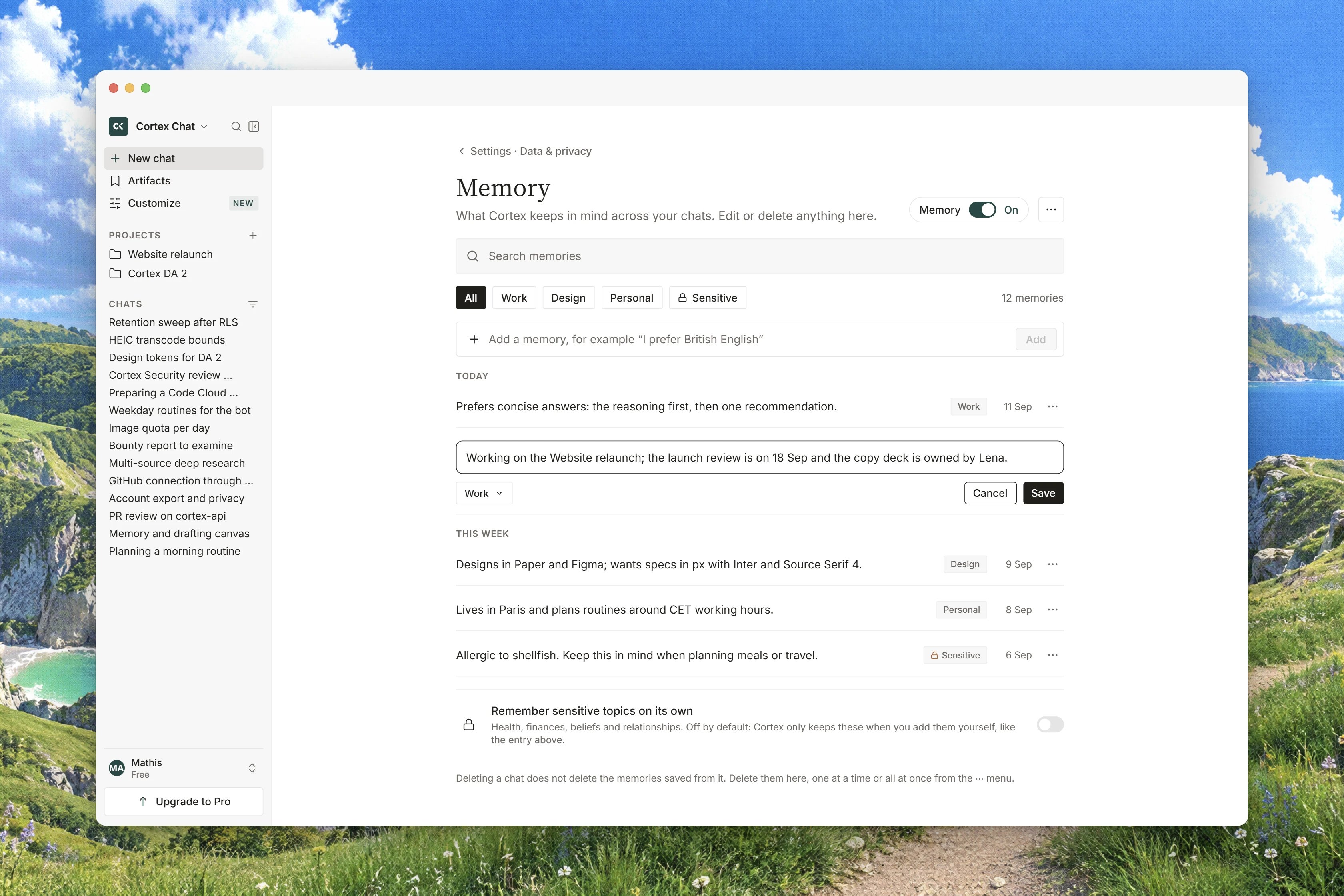
Interface preview
Where to manage memory
Everything below lives in Settings → Data & privacy, under Memory. The same panel carries the master switch, the sensitive-topics switch, the retention row, the searchable list of entries, and the export and import controls. The project-scope choice is the one part that lives elsewhere: it is inside each project, under its own Memory block. See Projects and Data and privacy.What memory stores
Memory holds what you told Chat, not your documents. Entries are grouped for review under Facts, Context, Preferences, Instructions and Other, and each one carries where it came from, shown as Saved from Chat. Files belong in Library, and a body of work belongs in a project. Your instructions and your memories are stored encrypted.Turn memory on or off, and narrow what it saves
- Use memory is the master switch. When it is off, Cortex neither recalls nor writes new memories, and existing ones stay until you delete them.
- Include sensitive topics is off by default. With it off, Cortex skips health, finances and similar topics when saving memories. It declines at the moment of writing rather than saving something and filtering it later. This switch can only be changed while Use memory is on.
How long memories are kept
The How long to keep memories row sets the retention window. It applies to new and existing memories on the account, and project memories follow the same window. The pills offered are 30 days, 90 days and Keep until deleted. If no window is shown, that is deliberate. A number here is a promise about deletion, so the product shows the value your plan actually carries rather than inventing a default.Review, edit and delete
1
Open the Memory panel
Go to Settings → Data & privacy and find Memory.
2
Narrow the list
Use Search memories, or read down the topic headings. If nothing matches, the panel says No memories match that search.
3
Edit an entry
Choose Edit on a row, change the text, and choose Save. Editing re-files the entry: its wording changes, its grouping is recalculated, and it is marked as having been edited by you.
4
Delete an entry
Choose Delete on the row. Deletion is per entry and immediate.
5
Go further back
Use Load more for older entries.
Account memory and project-only memory
Memory is account-wide by default, so it follows you into every chat. A project can be switched to read a narrower set. Inside the project, the Memory block offers:
Switching the scope never deletes anything. It changes what is read on a turn. One consequence worth knowing: an import started from the account panel always writes account memories, whatever a project is set to.
Export and import
Export memories saves a plain-text file calledcortex-memory.txt, one memory per line. Keep it as a backup, read it to audit what Cortex holds, or edit it and bring it back.
Import memories takes those lines back in. Paste them into the import box and choose Import memories. The rules are strict on purpose:
- Import only adds. It never overwrites and it never deletes.
- One memory per non-empty line, and at most 200 lines in a single paste. A longer paste is refused before anything is processed.
- If any line fails, the whole import is rolled back, so a partial import cannot leave you with half a list.
Temporary chats
A Temporary chat never reads or writes memory. It is also kept out of Recents and is deleted after 30 days. The composer says exactly that when you turn one on. Use it for a question you do not want shaping later answers.
Searching past chats
Recall from memory is not the same thing as reading your old conversations. Searching past chats is a separate capability behind its own explicit consent, and the default is no. When it is granted, the model can find titles and snippets from your conversations, capped at ten results, and it never includes temporary or archived conversations.There is no control in the product for granting that consent yet, so searching past chats is not something you can switch on from Settings today. Memory itself, on this page, is fully available.
When memory cannot be read
If the memory setting itself cannot be read, the turn is treated as memory off and the panel tells you: memory could not be loaded, so it stays off, and nothing is listed or saved until the setting can be read. It fails closed on purpose, so an outage never turns into a silent write.Related
- Projects - standing instructions, and project-only memory
- Data and privacy - the settings tab memory lives on
- Conversations - temporary chats, pinning and recents
- How Chat works - where memory enters a turn
- Built-in tools - the tools a turn can reach for