

From an ordinary answer, a deck is the only file a chat produces. Other document formats appear only on a Deep Research report card, where Markdown is the one implemented today. There is also no control anywhere in the app that exports a whole conversation as a document.
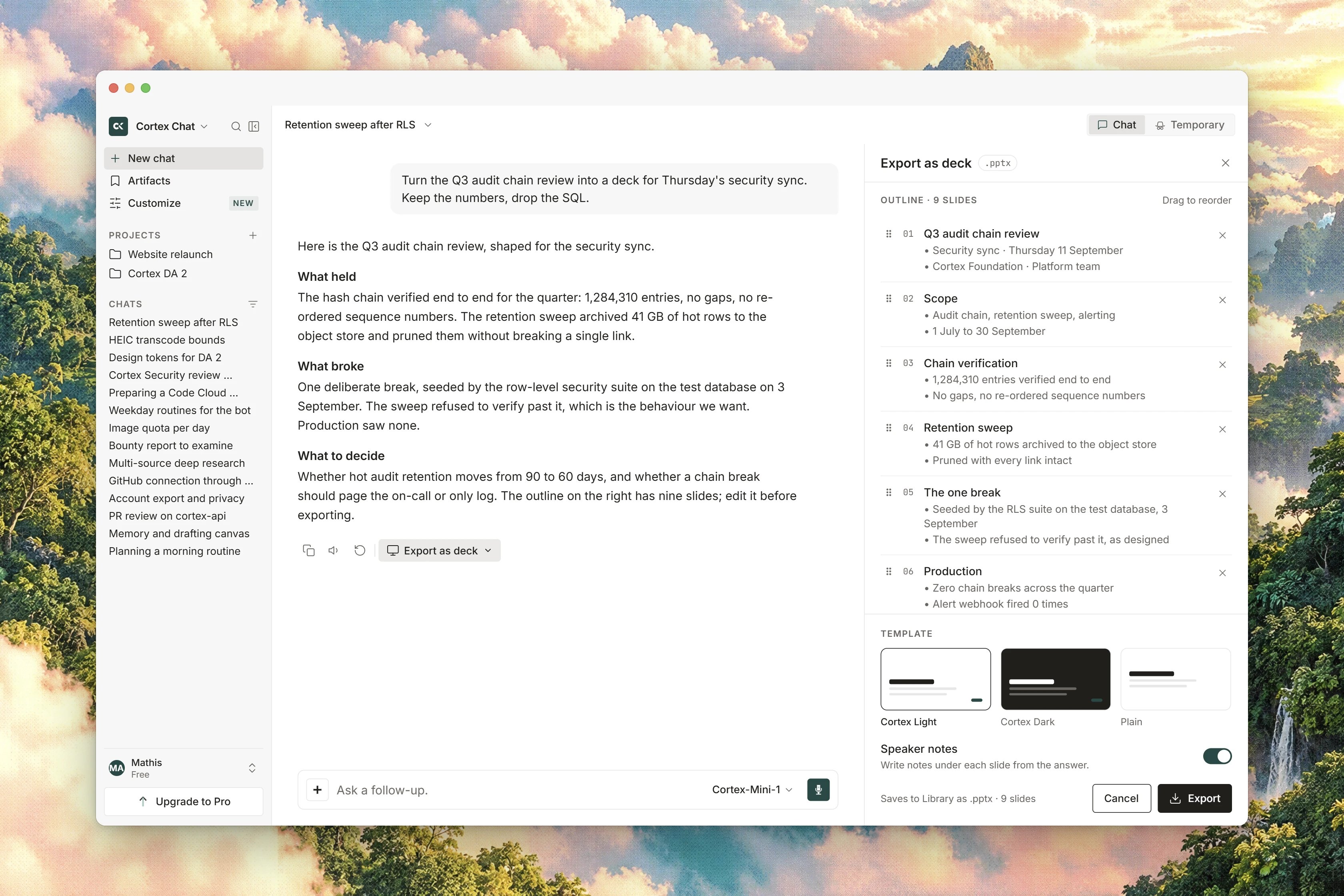
Interface preview
Export happens in two steps
Nothing is written until the second step, and the split matters for your allowance.- Outline. Cortex reads the thread and drafts slide titles and bullets. Every title and every bullet is editable. This step does not spend an export.
- Create. Cortex typesets the file and saves it to Library. This step spends one export. A malformed outline is refused before anything is charged, and if the writer fails the export is returned to you.
Export an answer as a deck
1
Open the dialog
On the answer, choose Export. The dialog is titled Export and explains:
Review the outline before anything is created.2
Wait for the outline
It opens on
Drafting the deck outline…, then shows the Deck outline heading with the number of slides it drafted.3
Edit the slides
Each slide has a title field and a bullets field, whose placeholder is
One bullet per line. Rewrite anything you do not like, and delete what you do not need.4
Pick a theme
Under Theme, choose
Cortex or Cortex · Plain.5
Create the file
Press Create deck. The dialog counts the slides as it writes them, then finishes with a result line naming the artifact, the slide count and the theme. The file is in Library.
Escape cancels before Create. There is no Slides tab. If creation fails, the message is The deck could not be created.
Themes and slide layouts
The outline can use these layouts:
Cover, Section, Bullets, Two-column, Table, Chart, Image and Sources.
Export the whole thread as a deck
The transcript header has its own entry point, Export as deck, which outlines the conversation rather than one answer. Its description readsOutline the thread, preview the slides, then typeset a file into Library.
Press Draft outline. The panel shows Drafting the outline…, then the outline to review, with the reassurance Cortex drafts an outline from this thread. Nothing is written until you download. Confirming moves it to Writing the deck…, and on success you get a line reading Saved to Library as with the file name. From there, Download puts a copy on your machine and Re-export writes it again.
Three messages worth recognising here:
Download a table as a CSV
When an answer contains a table, the link under it reads Export as spreadsheet. Clicking it downloads a file namedtable.csv immediately.
This is a browser-side download built from the table you can see, and it behaves nothing like the deck export. There is no dialog, no outline, no export allowance spent, and nothing is saved to Library. The file is comma-separated text, not a spreadsheet workbook, so a spreadsheet application will open it but formatting and formulas are not part of it.
Formats on a Deep Research report
A Deep Research report card is the one place in Chat that offers a choice of document formats rather than a deck alone:Markdown, PDF, Word and Deck. Markdown is the one that works today, and the menu’s own footer says so: Markdown is ready now. Other formats stay listed until they ship. Each item also stays disabled until the server reports it as available, so a report with no sources turns them all off.
The research report card also has its own deck flow, whose wording differs slightly from the one on an answer: the title is Export as a deck, the hint reads Review the outline, then Cortex typesets the slides. This is an export, not a separate generator., the confirm button is Export deck, and it shows Writing slides… while it works. If the capability is not ready you get Deck export is not available yet., and if the outline cannot be drafted, The outline could not be drafted.
See Deep Research for what a report is and how to run one.
Disclosures travel inside the file
Cortex writes its notices into the exported document rather than displaying them beside it, so they stay with the file when it is forwarded. Under Disclosures you may see that the document was drafted by a model and that Cortex writes that notice into the file itself, that it was made in a Cortex conversation and that the conversation is not in the file, that no human has reviewed it before it left Cortex, and image credits where they apply. The group ends with the point of the whole arrangement:This notice is written into the file and travels with it.
Exports per day
Exporting is metered per day, per account.
You do not need an account to export, and drafting an outline never counts. Only creating the file does, and a failed write is refunded. When you run out, the plan-limit message says you have used today’s document exports. No allowance is published for the Go plan yet, so treat it as unconfirmed rather than unlimited. See Plans and quotas and quota_exceeded.
Related
- Library for where exported files are saved.
- Deep Research for reports and their format options.
- Chat canvases for drafting a document in the conversation instead.
- Sharing and teams for what you can pass to another person today.
- Chat troubleshooting for the export failure messages in context.