

Start a chat
New chat in the sidebar is an action rather than a place. It clears the composer, and the conversation itself is created by your first message: the home page turns into the thread in place, without a reload, and the link in your address bar becomes a stable identifier for it. The title arrives on its own. Until it does the row reads New chat, then Naming this chat… while the title is written, and then the generated title. The title is never put in the link, so a conversation link stays an identifier no matter what the chat ends up being called. If the title cannot be saved you see The title could not be saved. The thread is unchanged., and nothing else about the conversation changes.A chat cannot be renamed. The app refuses with Chat titles cannot be renamed yet — this app has no route for it. If a title bothers you, the practical answer is to start a fresh chat with a clearer first message. The Rename session control you may have seen belongs to Cortex Code sessions, not to Chat.
The composer, beyond typing
Typing/ opens a short palette of things a new message can be:
Three composer behaviours are worth knowing before you meet them.
- Offline. With no network the box reads You are offline — your message will wait here and a toast promises Sending when back online. Leave the chat before it goes and it is dropped: A waiting message was discarded because you left this chat.
- Steer this reply. Add a course correction while Cortex is still writing, instead of waiting for it to finish.
- Queue a follow-up… holds your next message until the current answer is done, as a Queued follow-up chip. Return queued follow-up to the composer takes it back.
Change your mind about a message
Nothing in a conversation is destroyed by changing your mind. Messages form a tree, and both controls below add a path rather than overwrite one.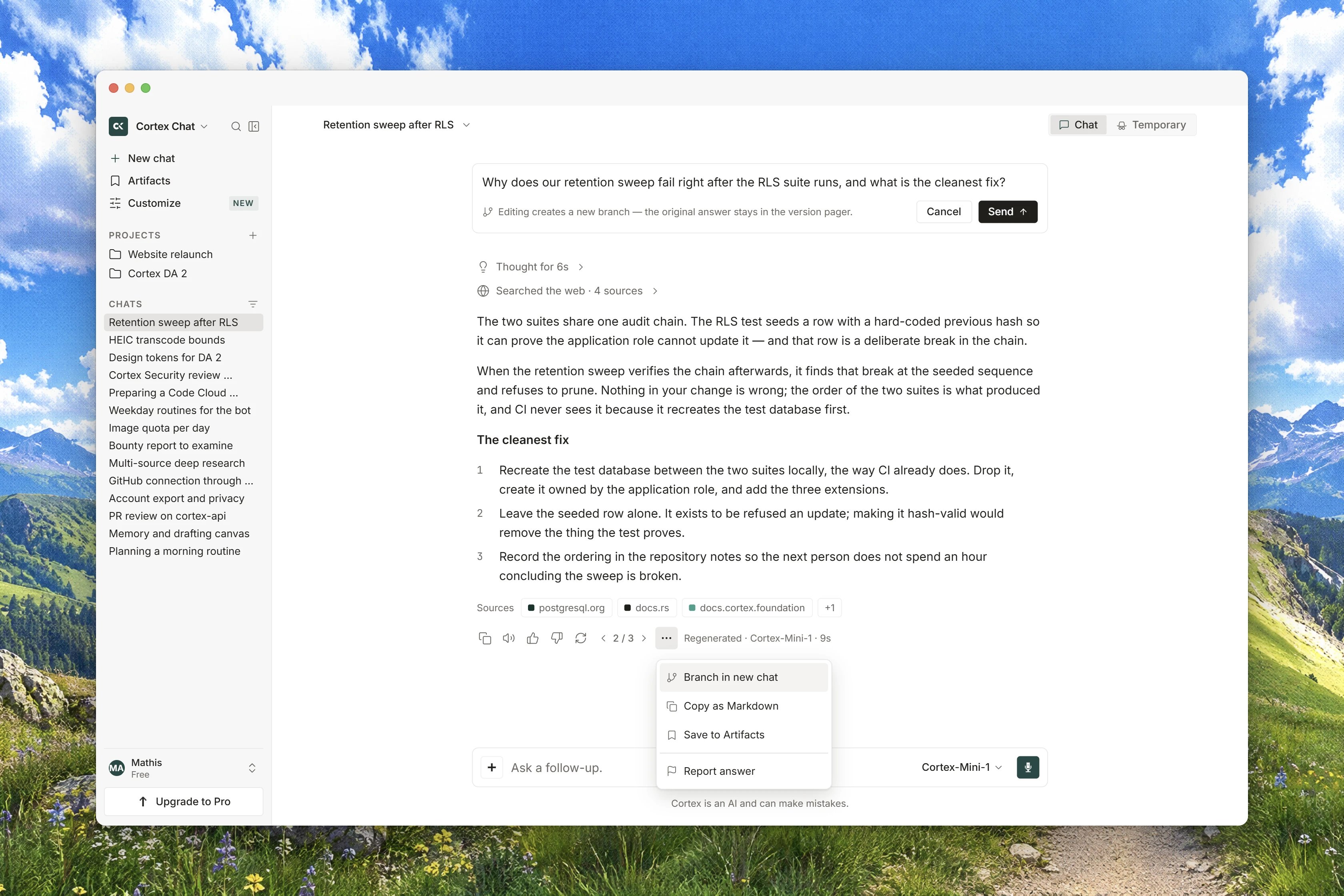
Interface preview
1
Edit a message you already sent
Hover your own message and choose edit. The banner reads Editing · original kept as Branch 1. Change the text and press Send as branch, or Cancel.Afterwards the banner counts which branch you are on out of how many exist, with the reassurance Original kept, and you move between them from there.
2
Regenerate an answer
Choose Regenerate on the answer. The previous answer is kept as a version, and a pager appears showing which version you are reading out of the total, with Previous version and Next version. It is hidden while there is only one version.Switching versions changes which answer is live, and therefore everything that follows from it.
3
Branch the whole conversation
Branch in the conversation header opens a new chat carrying the pill Branched from another chat, so you can take a thread in a second direction without disturbing the first. Where the deployment does not serve it: Branching from a message is not on this deployment.
Pin, archive and delete
Pins are capped at 20, shared between chats and projects. Past that, pinning is refused with You have 20 pinned chats and projects. Unpin one before pinning another.
Archiving and deleting are not the same thing, and the difference matters:
- Archiving only removes a chat from Recents. There is no archived view, filter or page anywhere in the app, so treat archiving as hiding a thread rather than as filing it somewhere you can browse later. An archived chat can still be reached from Chat search.
- Deleting is irreversible. The dialog is explicit about it: Deleting removes the conversation and its messages. This cannot be undone. Files you uploaded stay in Library.
How Recents groups your threads
The sidebar keeps three sections: WORKSPACE, PINNED (drawn only once you have pinned something) and RECENTS. Recents can be grouped three ways.
Threads are also separated into Chats and Research, so a research run does not bury your ordinary conversations. To move a chat into a project, use Move to project under More chat actions; see Projects.
Find a conversation
Press Cmd or Ctrl with K anywhere in Chat to open Chat search, and type into Search chats, library, and skills. Results come back in three groups, Chats, Library and Skills, with up to eight hits each. Arrow keys move, Enter opens, and Close search dismisses it. With an empty query the palette lists Recent chats, so opening it is useful even before you type. If it cannot run you see Search could not run. Two things to expect from it:- It searches titles, not messages. Message bodies are stored encrypted and are not indexed, so a phrase from inside an answer will not find the thread. Search for what the conversation was about instead.
- It does not hide archived or temporary chats. Either can appear in results even though neither is listed in Recents.
Find something inside the open conversation
Open Search in this conversation and type into Search this conversation. A counter shows which match you are on out of how many there are. Previous match and Next match step through them, as do Enter and Shift with Enter. Clear search empties the field and Close search puts the bar away; Escape does both in turn, clearing first and closing on a second press. If there is nothing to find you get No matches in this conversation. and a useful hint: Try a shorter word, or a term from the answer rather than the question.Temporary chats
A temporary chat is for a question you do not want to keep.
Start one from the
/ palette or the composer’s Temporary chat toggle, before the first message. The choice is fixed at that point: Temporary is chosen when a chat starts. You cannot make a normal chat temporary afterwards, and you cannot promote a temporary chat into a permanent one. A Temporary badge in the header tells you which kind you are in. Filing one into a project is refused with A Temporary chat cannot be filed into a project.
Not available yet
Three things people reasonably look for do not exist in Chat today.- Renaming a chat. Titles are generated and cannot be edited.
- Exporting a whole conversation. There is no control for it. What you can export is a single answer, as a deck; see Export documents.
- Sharing a conversation. The Share control does not produce a link, and Chat has no shared threads. Copy link to message gives you a link that opens the conversation at one message for anyone who already has access to it, which on a per-account product means you. See Sharing and teams.
Shortcuts
The last two work but are not printed on the shortcut sheet. The full list for every product is on Keyboard shortcuts.
Related
- Chat quickstart - your first conversation, step by step.
- How Chat works - what one turn does, and what is stored.
- Models and thinking - why the model is fixed once a chat starts.
- Projects - file related chats together under shared instructions.
- Sharing and teams - what you can hand to someone else today.