

Run a prompt on a cadence in a chat you already have. Sharing a schedule is a different surface.
This page covers how to create a schedule from the Scheduled page or from a chat, the one fact that matters most (a scheduled run has no tools), where results land, how to pause, run and delete a schedule, and the limits and messages involved.
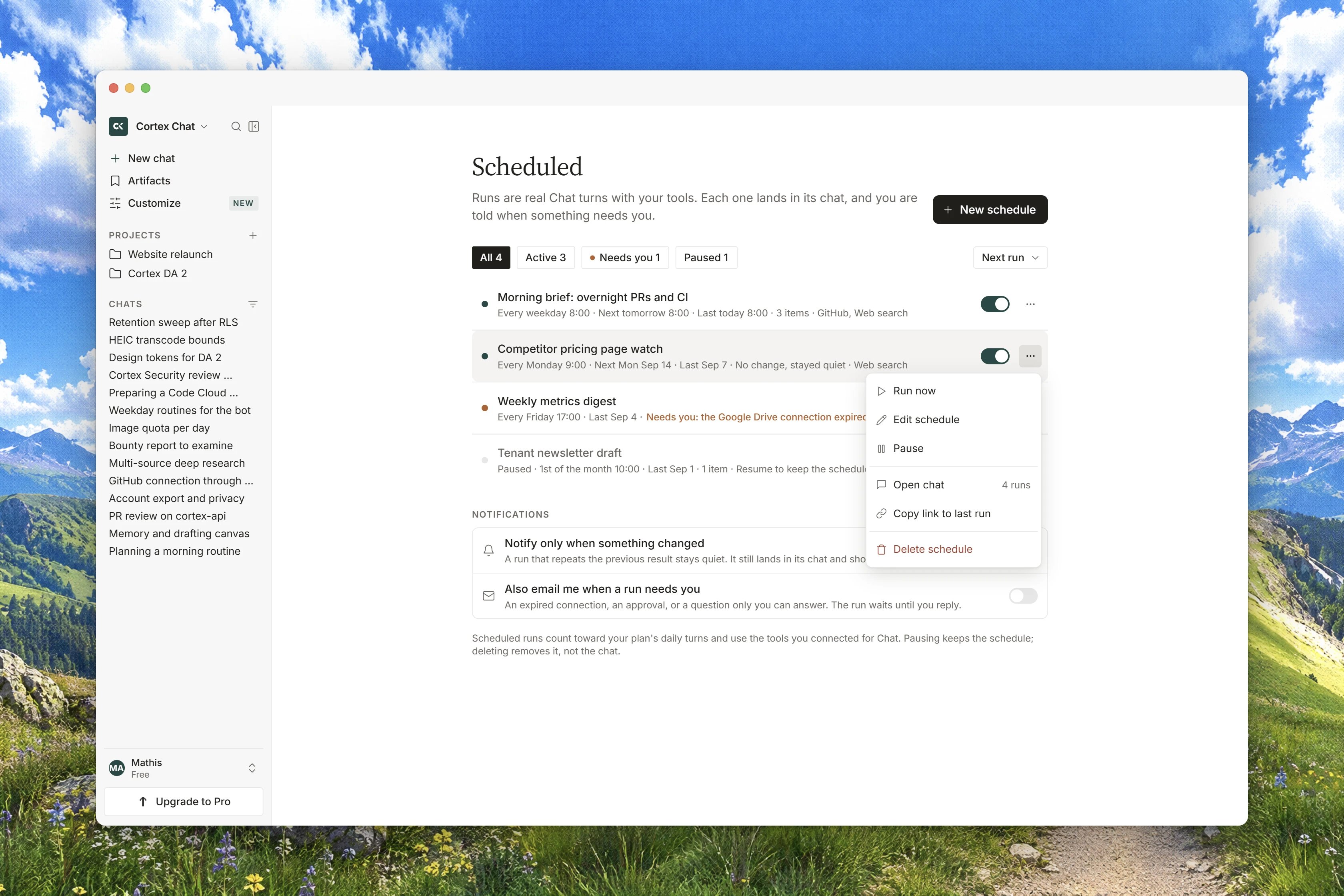
Interface preview
Create a schedule
- From the Scheduled page
- From a chat
1
Open Scheduled and choose New schedule
The empty state describes the form you are about to fill:
Pick a conversation, a cadence and an instruction. The optional webhook field is not stored here.2
Give it a Name
One to 200 characters. A shorter or longer name is refused with
title must be between 1 and 200 characters.3
Pick the Conversation
A dropdown of your existing chats, starting at
Choose a conversation. Runs land in whichever one you pick, so choose the thread where the answer belongs.4
Set the Cadence
A five-field cron expression, prefilled
0 9 * * 1-5. Anything else is refused with schedule must be a 5-field cron expression, interpreted in Europe/Paris.5
Write the Instruction
The prompt each run sends, one to 4,000 characters. Over the ceiling you get
prompt must be between 1 and 4000 characters.6
Choose Create
The schedule appears in the list as Active.
Times are always Europe/Paris
The cadence is read in one timezone and only one. The dialog states it plainly:The task runs as a Chat turn in Europe/Paris. The API stores no other timezone. The list carries the same reminder, Chat schedules. Times in {timezone}. Convert your local time yourself when you write the expression.
Cortex checks for due schedules about once a minute, and it guards against a schedule firing twice for the same slot.
Where results land, and what happens when a run fails
A run posts its answer into the conversation you chose, as a normal turn, and the answer is deliberately short. Nothing is emailed, nothing is collected on the Scheduled page for you to read: the chat is the inbox. If a run cannot reach a model, it lands a failed result in that same conversation and stamps the reason on the schedule, so the failure shows up exactly where the answer would have been. The stable reasons are that the upstream is not configured, that no model was available, that the prompt could not be read, or that the model returned nothing. Each row on the Scheduled page shows the schedule’s state, Active or Paused, the number of runs so far, and the last run’s status. A prompt that cannot be read back is listed as(prompt unavailable) rather than guessed at.
Pause, run now, delete
Row actions do what their labels say, and none of them touch the conversation:Limits
The cap of 50 is account-wide and identical for everyone. The dialog’s usage line reads
{used} of {limit} schedules on this plan. and the refusal at the ceiling reads You've reached the schedule limit on this plan., but the wording is misleading: no plan raises or lowers it. The server answers A user may hold at most 50 scheduled tasks. whatever you are subscribed to. Delete a schedule you no longer need to make room.
Scheduling needs an account. A guest is refused with
Sign in to schedule a task. See Accounts.The Webhook field is not saved
The create form shows a Webhook field, and it tells you the truth about it:Webhook not stored, followed by Sharing a schedule with a webhook is a different product surface. This field is not persisted. Anything you type there is discarded. Sharing a schedule outward does not exist yet, so treat the field as a placeholder and ignore it.
Related
- Conversations - the thread header with More and Schedule this, and the place every run lands.
- Planning - task lists, the surface for what is left to do rather than when it happens.
- Built-in tools - what a normal turn can reach, and therefore what a scheduled run gives up.
- Chat troubleshooting - when a run lands a failure instead of an answer.
- Limits and quotas - the rest of the ceilings across the products.