

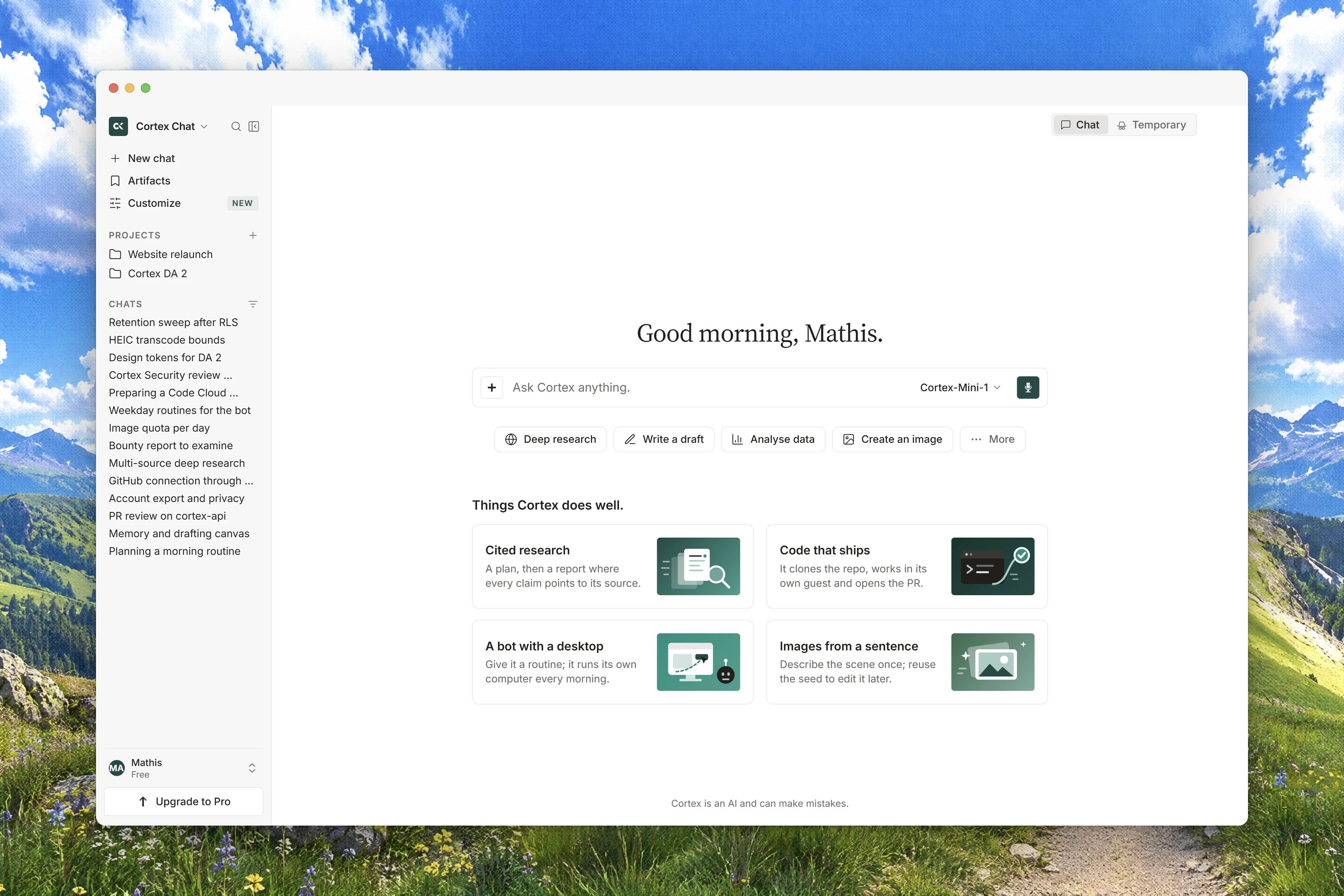
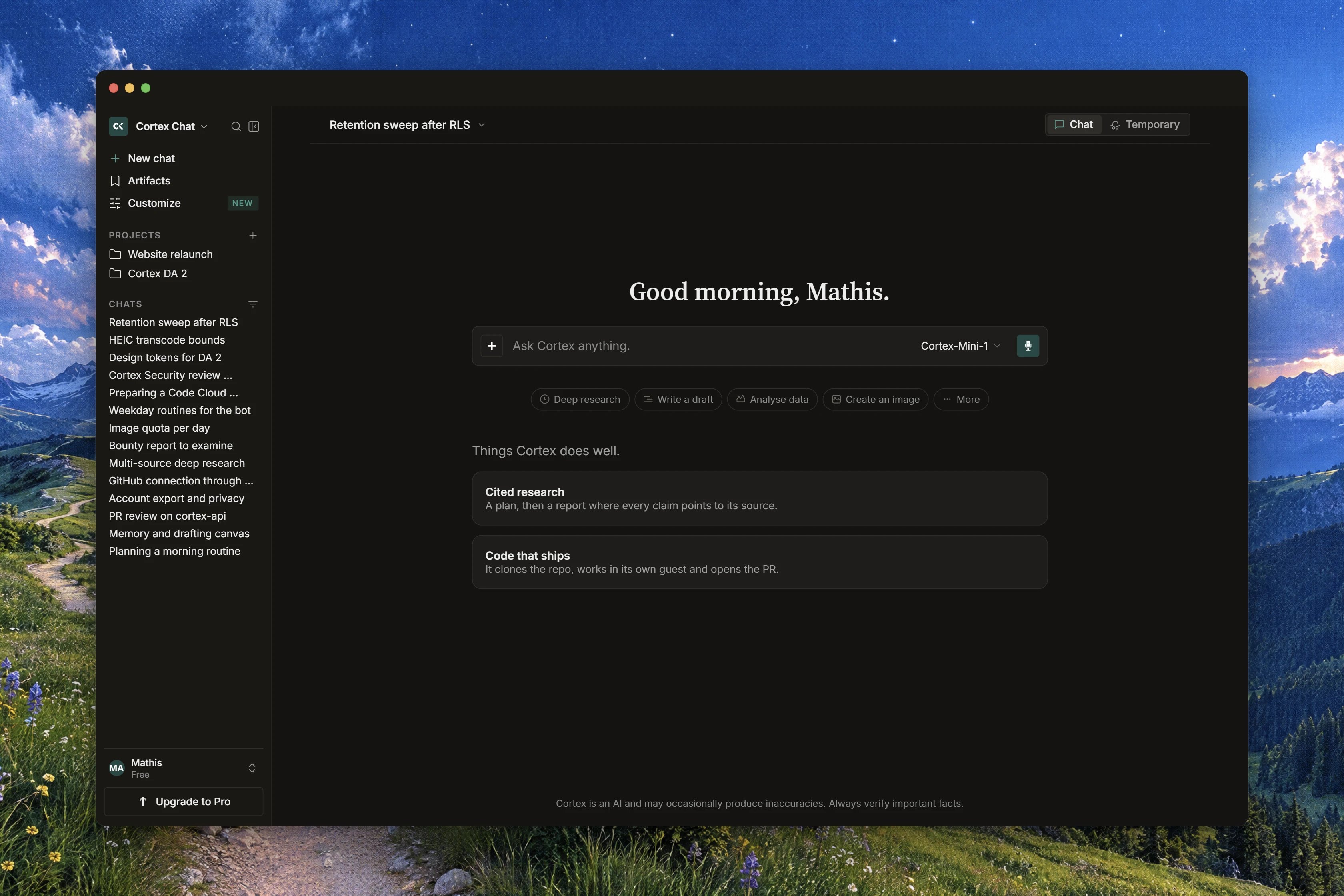
Interface preview
The page you land on
The home page greets you with Good morning, Good afternoon or Good evening, and shows a short list of starting points under the heading Things Cortex does well.
Three example prompts sit below them: Plan a 5-day trip to Tokyo, Summarize this quarterly report and Draft a launch announcement. Under the composer, on every page, Chat repeats the line Cortex is an AI and can make mistakes.
The composer itself is one text box labelled Ask anything, or pick an app below…, with Attach a file, Deep Research, Science, the model chip, and Send message. While an answer is being written the box reads Cortex is responding… and the send button becomes Stop responding.
The sidebar has three sections: WORKSPACE, PINNED (drawn only once you have pinned something) and RECENTS. Sending your first message turns the home page into a conversation in place, so nothing reloads and nothing flickers.
Chat offers two models today, Cortex 1 Mini and Cortex Teutonic-1, and both are marked PREVIEW in the picker. Neither depends on your plan. See Models and thinking.
Start here
Chat quickstart
From an open tab to a useful first conversation, in a few minutes.
How Chat works
What happens inside one turn: tools, citations, compaction, and the limits.
Conversations
Conversations
Start, edit, branch, pin, archive, delete and search your threads.
Models and thinking
The model chip, what Preview means, and the three thinking levels.
Attachments and files
What you can attach, the size ceiling, and where uploads land.
Streaming and reconnects
Why an answer arrives in pieces, and what a dropped connection does.
Voice
Dictate a message, and hear an answer read back, where both are available.
Chat canvases
A document beside the conversation that you and Cortex can both edit.
Export documents
Turn an answer into a deck, and download a table as a spreadsheet file.
Organize your work
Projects
Standing instructions, knowledge and chats kept together.
Library
Everything you uploaded and everything Cortex produced.
Sharing files and connected drives
Share a Library file, connect a drive, and attach items from it.
Memory
What Cortex remembers between chats, and how to review or delete it.
Planning
Task lists that outlive the conversation they came from.
Scheduled tasks
Runs that happen on a schedule instead of while you wait.
Research and creation
Built-in tools
The tools a turn can call, and what their rows in the transcript mean.
Deep Research
Planned questions, live sources, and a cited report.
Image generation
Ask for a picture, and see where it lands.
Origin check
Attach media and ask whether it is authentic.
Cortex Data
Ask metric questions and keep a dashboard on the thread.
Skills in Chat
Bundled and user-written skills, and how a turn loads one.
Connected apps
Connectors
Connect an app and choose which products may use it.
MCP servers
Add a remote server and use its tools inside a turn.
Page tools
Tools a web page offers, and the consent card in front of them.
Reference
Sharing and teams
Chat is per account. What that means, and what you can share today.
Chat troubleshooting
The messages Chat shows when something goes wrong, and what to do.
How it fits with the other products
Chat is a conversation. It has no workspace, no repository and no computer of its own, so three jobs belong elsewhere.
Two connections are worth knowing. A note you save out of an answer lands in Library and is Saved in Chat Artifacts. Available from Chat, Code and Bot. And a Chat canvas is a plain text document attached to one conversation, which is not the same thing as a Design canvas.
If you are not sure which product you want, read Which product do I need?.
Related
- Chat quickstart - send a first message and get a real answer.
- Conversations - manage the threads you accumulate.
- How Chat works - the turn, its tools and its limits.
- Plans and quotas - what your allowance covers.
- Chat troubleshooting - when a turn, a file or a model misbehaves.